Storing Files Using an AWS S3 Bucket
Introduction
This article outlines how to configure ScreenMeet to store session files and recordings in your organization’s AWS S3 bucket.
Accessing the Configuration Screen
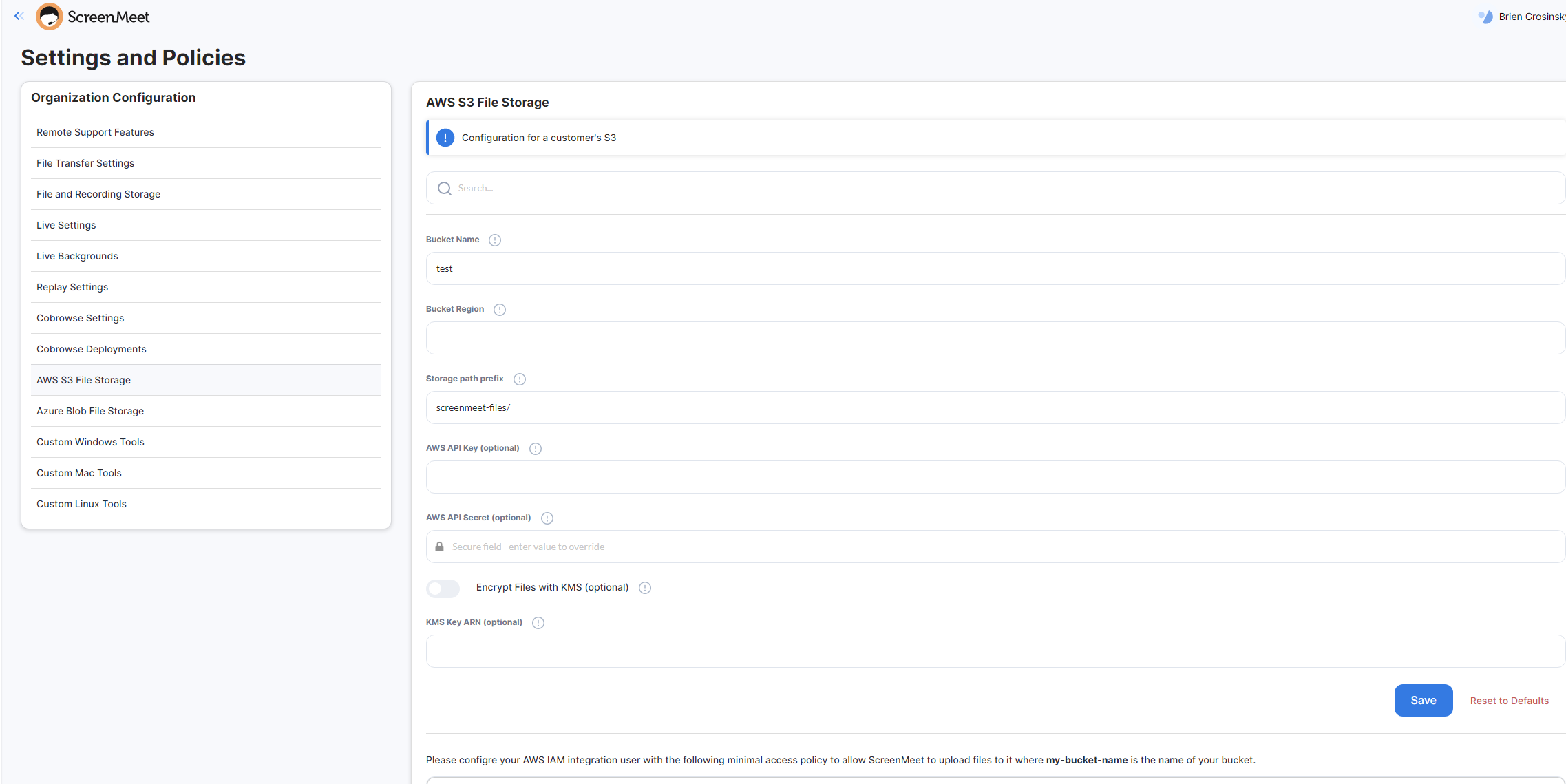
Navigate to the ScreenMeet console: https://console.screenmeet.com/. The configuration screen will appear as shown below.
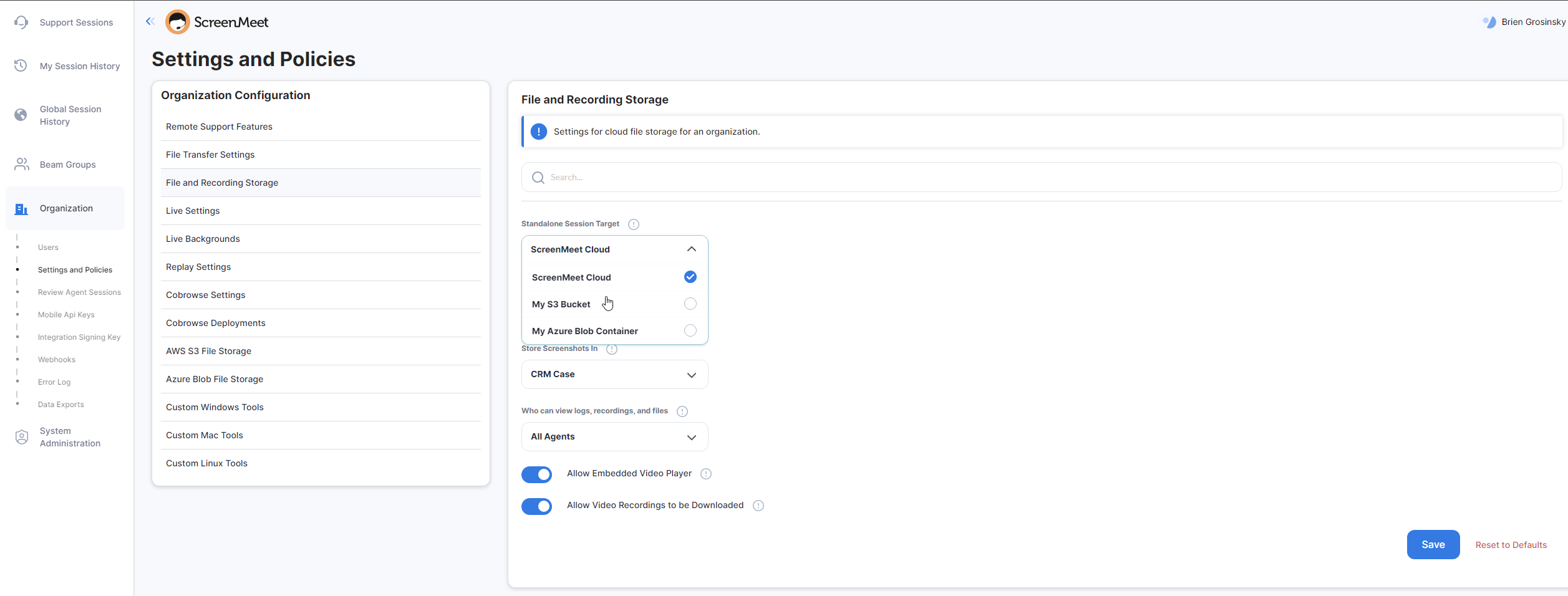
You can then set the file storage destination to your S3 bucket:
Creating an IAM Policy
- Navigate to the IAM dashboard.
- Select Policies from the left menu.
- Create a policy using the Create policy button.
- Open the JSON tab and paste the following policy:
{ "Version": "2012-10-17", "Statement": [ { "Sid": "screenmeetbucketaccess", "Effect": "Allow", "Action": ["s3:PutObject", "s3:GetObject"], "Resource": "arn:aws:s3:::my-bucket-name/*" } ] }- Replace
my-bucket-namewith your target S3 bucket name. - Continue through the setup and name the policy (e.g., S3 Bucket Access for ScreenMeet).
Creating an IAM User
- Navigate to the IAM dashboard.
- Select Users and click Add user.
- Name the user (e.g., IntegrationUser).
- Select Access key as the credential type.
- Attach the policy created earlier by selecting Attach existing policies directly and checking the box.
- Click Create user.
- Record the Access key ID and Secret access key. Download the CSV for future use.
Integrating the Bucket and IAM User
- Navigate to Organization → Settings and Policies → AWS S3 File Storage in the ScreenMeet console.
- Enter your S3 bucket name and region (e.g.,
us-east-1). - Enter the IAM user’s Access key ID.
- Enter the IAM user’s Secret access key.
- Click Save configuration and then Test bucket access.
- After a successful test, all new recordings will be stored in the specified S3 bucket.
File Storage Path Format
Files uploaded by ScreenMeet follow this structure:
<prefix>/<year>/<month>/<day>/<session_id>Conclusion
Once configured, ScreenMeet will securely upload all applicable session files to your AWS S3 bucket following your organization’s retention and compliance policies.