You will need to configure access to three objects for ScreenMeet to function properly. These objects are:
| Object | Description |
|---|
| ScreenMeet Live Sessions | The primary object which holds metadata about ScreenMeet sessions. |
| Live Session Log Messages | This object stores audit event log data from ScreenMeet sessions. |
| Live Session Device Attributes | This object is used with Remote Support and Cobrowse sessions to store various system attributes of the host device. |
Configuring the ScreenMeet Live Sessions Object
- Click on Object Settings
- Find the object called ScreenMeet Live Sessions and click on it.
- Click the Edit button.
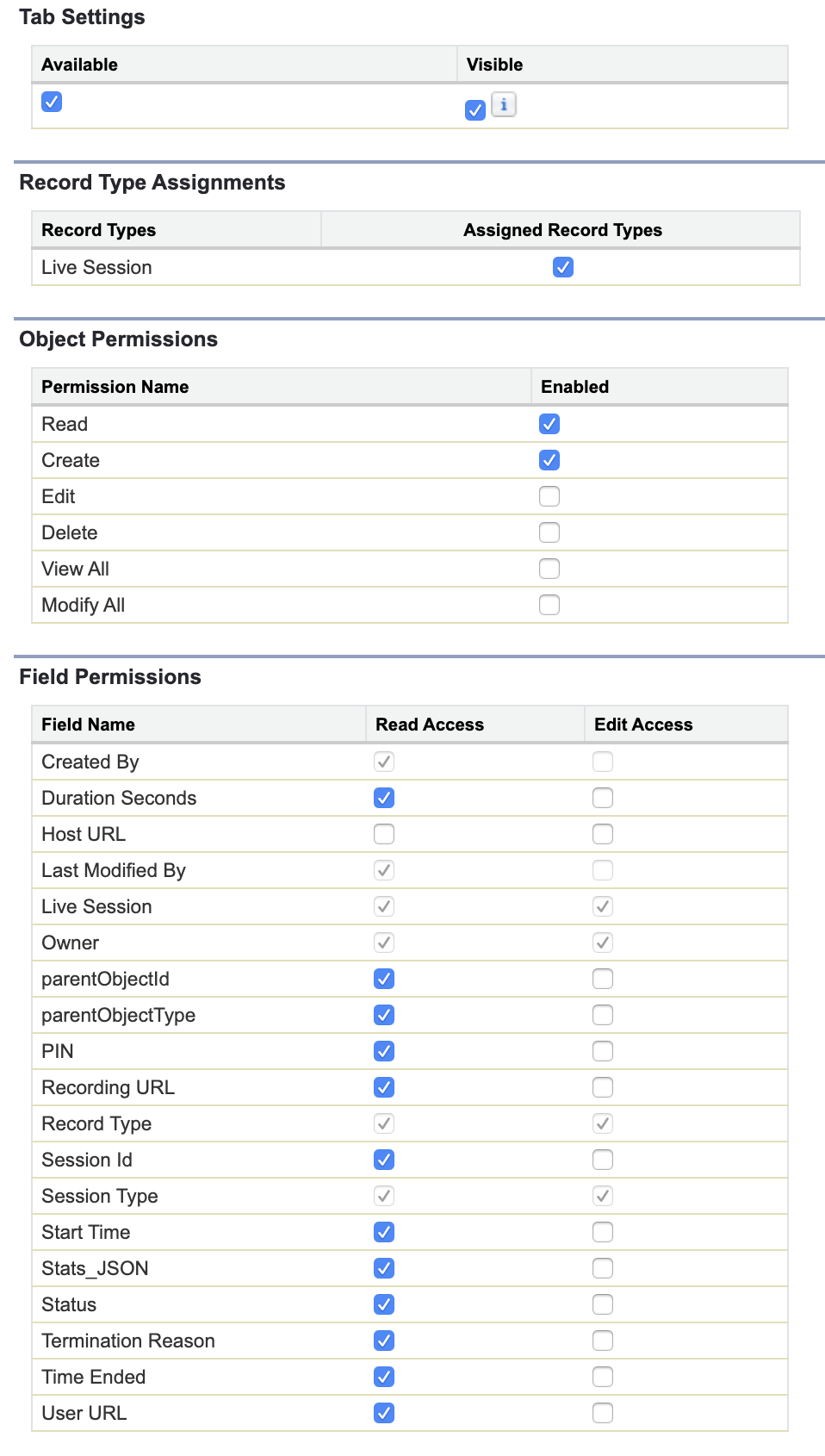
 - Configure the Tab Settings to be Available and Visible (optional depending on your solution configuration).
- Assign the Live Session Record Type
- Assign the Read and Create Object permissions
- In the Field Permissions section, check all Read Access permissions except Host URL field.
Host URL NOTE: Host URL is a unique field designed with advanced integrations that involve emailing or messaging the URL to the session organizer. The URL contains an authentication token that grants anyone who clicks on the link Host privileges to that session. This field should be treated as a secure field, and, therefore, should not be made available directly to Agent end users. - Click Save.
|  |
Configuring the Live Session Log Messages Object
Live Session Audit Logs
Follow the instructions below to make the audit log data available to your users. Otherwise, you can disable read access to this object for ScreenMeet Agents.
- Return to the Permission Set Overview for ScreenMeet Agent.
- Click on Object Settings.
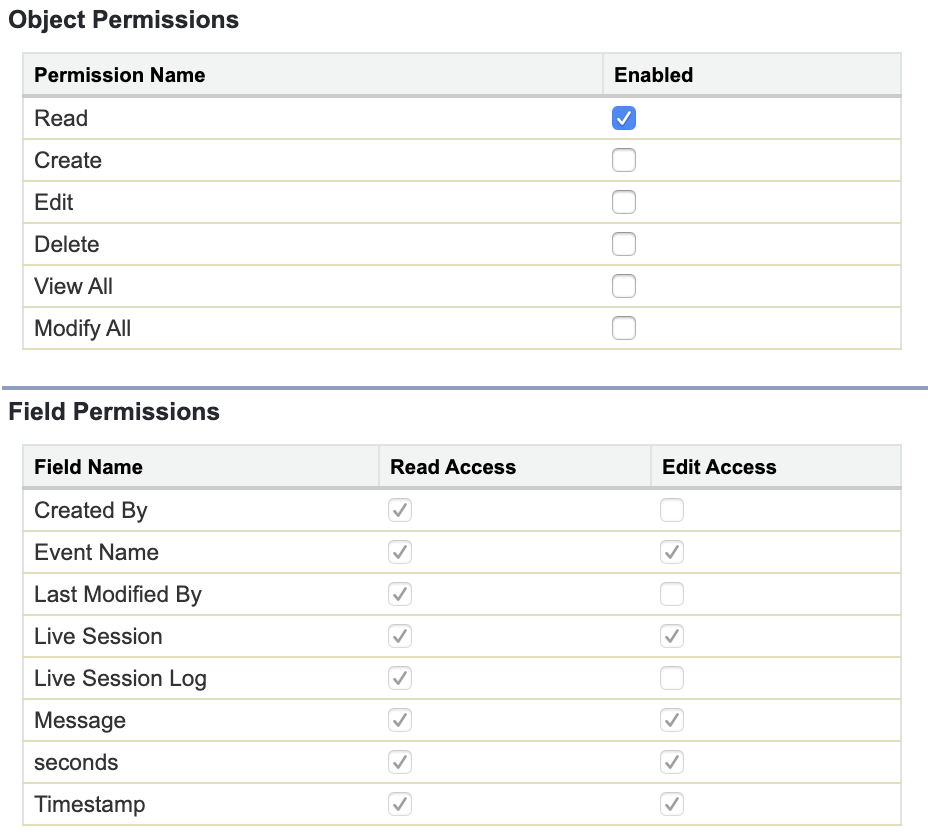
- Find and select the Live Session Log Messages object.
- Click the Edit button.
 - Enable the Read permission.
- In the Field Permission section, make sure Read Access is enabled.
- Click Save.
|  |
Configuring the Live Session Device Attributes
Live Session Device Attributes
Follow the instructions below if you wish the Device System Information to be available to your users. Otherwise, you can disable read access to this object for ScreenMeet Agents.
- Return to the Permission Set Overview for ScreenMeet Agent.
- Click on Object Settings.
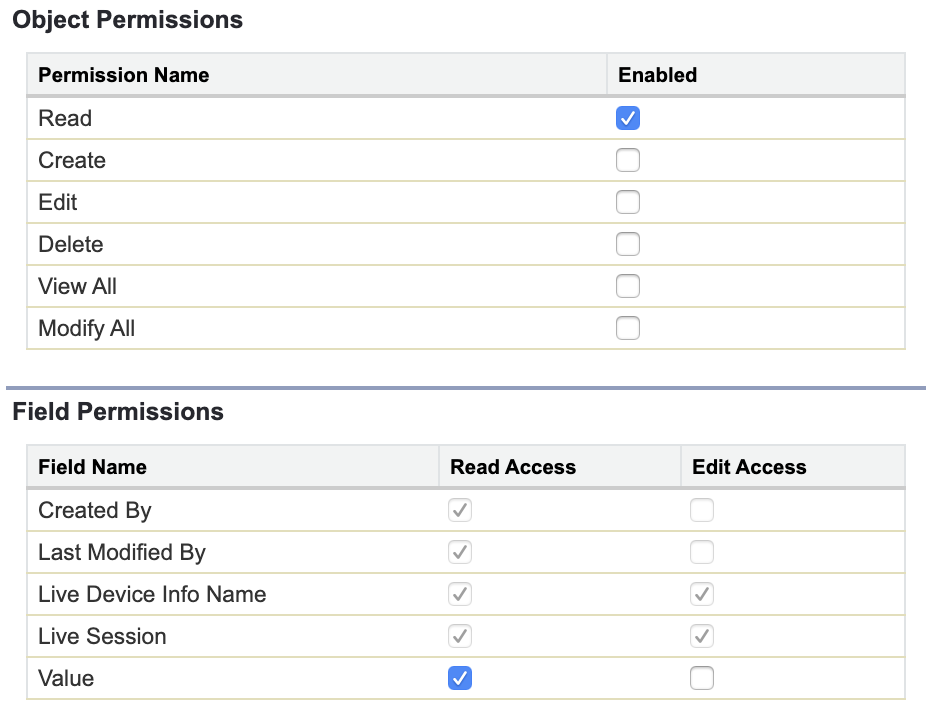
- Find the object called Live Session Device Attributes and click on it.
- Click the Edit button.
 - Enable the Read permission.
- In the Field Permission section, make sure Read Access is enabled.
- Click Save.
|  |
Next: Apex Class Access