---
title: "Live Custom Styling Guide"
slug: "live-custom-styling-guide"
description: "Customize your Live experience with color variables and templates. Download the Excel file to apply your desired changes easily."
updated: 2023-09-20T16:58:54Z
published: 2023-09-20T16:58:54Z
canonical: "docs.screenmeet.com/live-custom-styling-guide"
---
> ## Documentation Index
> Fetch the complete documentation index at: https://docs.screenmeet.com/llms.txt
> Use this file to discover all available pages before exploring further.
# Custom Styling Guide
The styling of the Live experience can be customized. Currently, these customizations have to be applied by the ScreenMeet team.
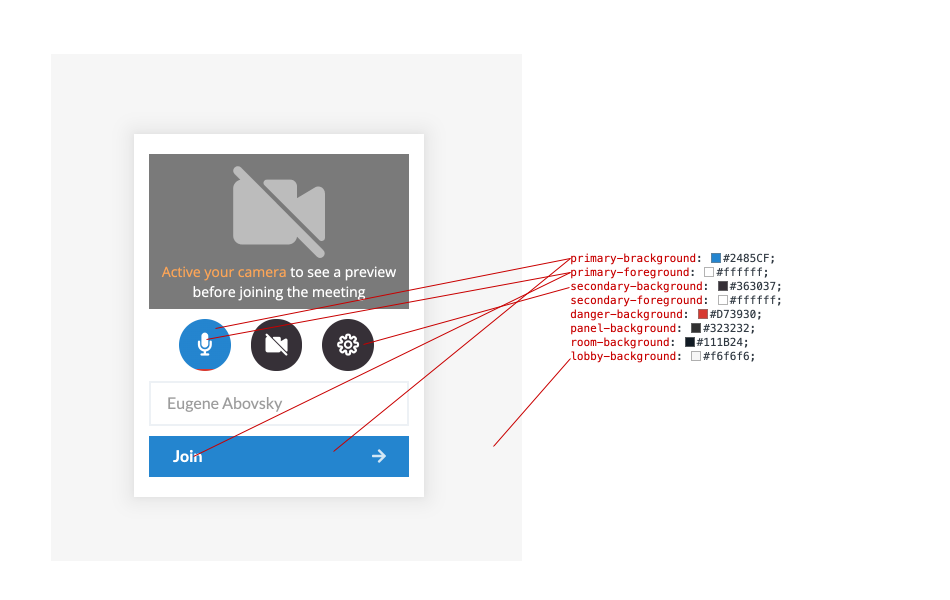
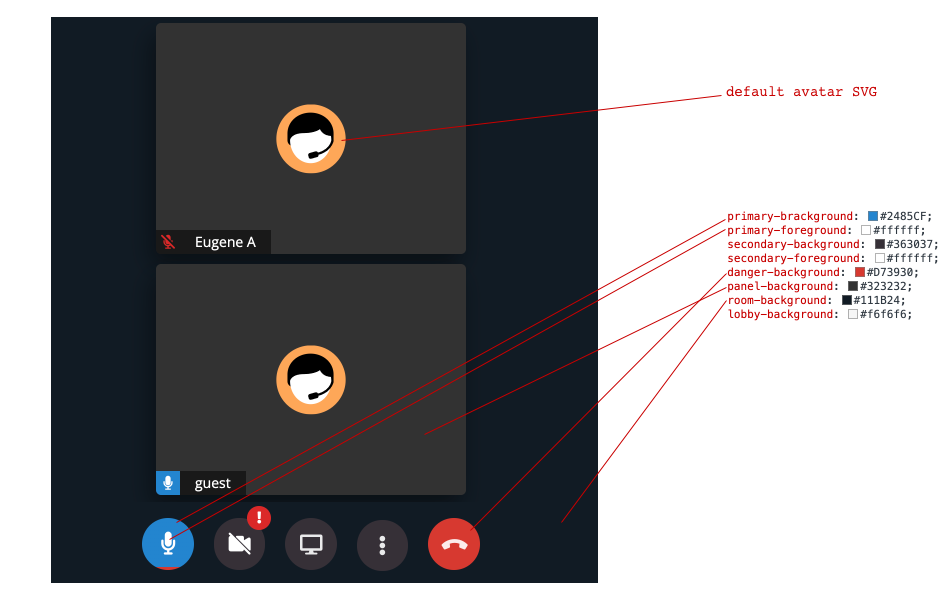
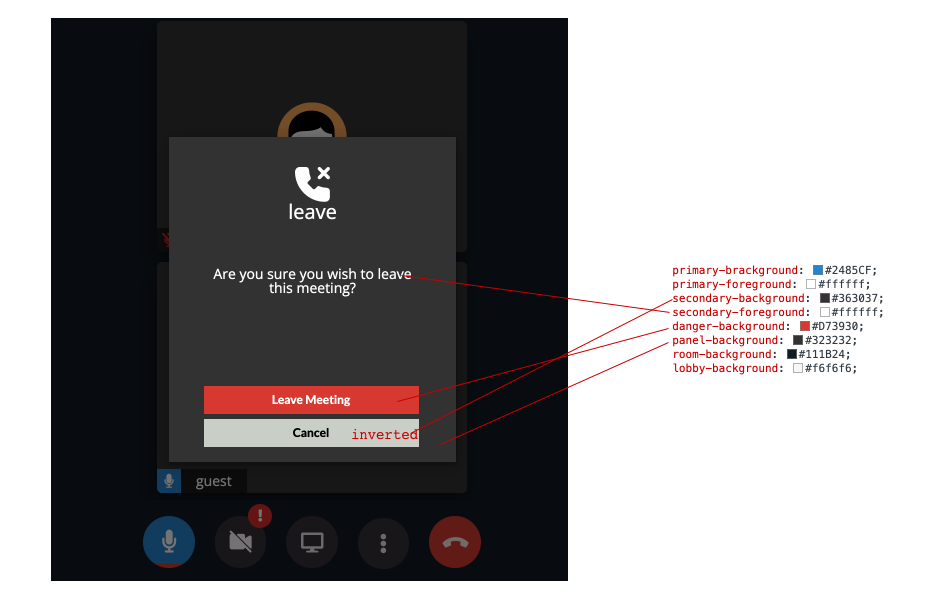
The illustrations below will provide a general guideline for customized elements.
Below is a template with the default values and a column for desired changes.
**Once ready, please download the Excel document, input your desired colors, and attach it to an email to [support@screenmeet.com](mailto:support@screenmeet.com) or within your support desk ticket.**
[https://docs.google.com/spreadsheets/d/10qnA8T_yCUyJd5RClD8i7CVhq1pVD8zl/edit?usp=sharing&ouid=114676371658156094453&rtpof=true&sd=true](https://docs.google.com/spreadsheets/d/10qnA8T_yCUyJd5RClD8i7CVhq1pVD8zl/edit?usp=sharing&ouid=114676371658156094453&rtpof=true&sd=true)
## **Color Variables**
The majority of the styling is derived from a set of color variables. These variables can be overridden to produce different looks for the product.
The following color variables and their default colors are:
1. primary-brackground: #2485CF
2. primary-foreground: #ffffff
3. secondary-background: #363037
4. secondary-foreground: #ffffff
5. danger-background: #D73930
6. panel-background: #323232
7. room-background: #111B24
8. lobby-background: #f6f6f6
The illustrations below demonstrate how these values apply to various parts of the application:
### Lobby
### In-Room
### Dialogs
## Testing Styles in Real Time
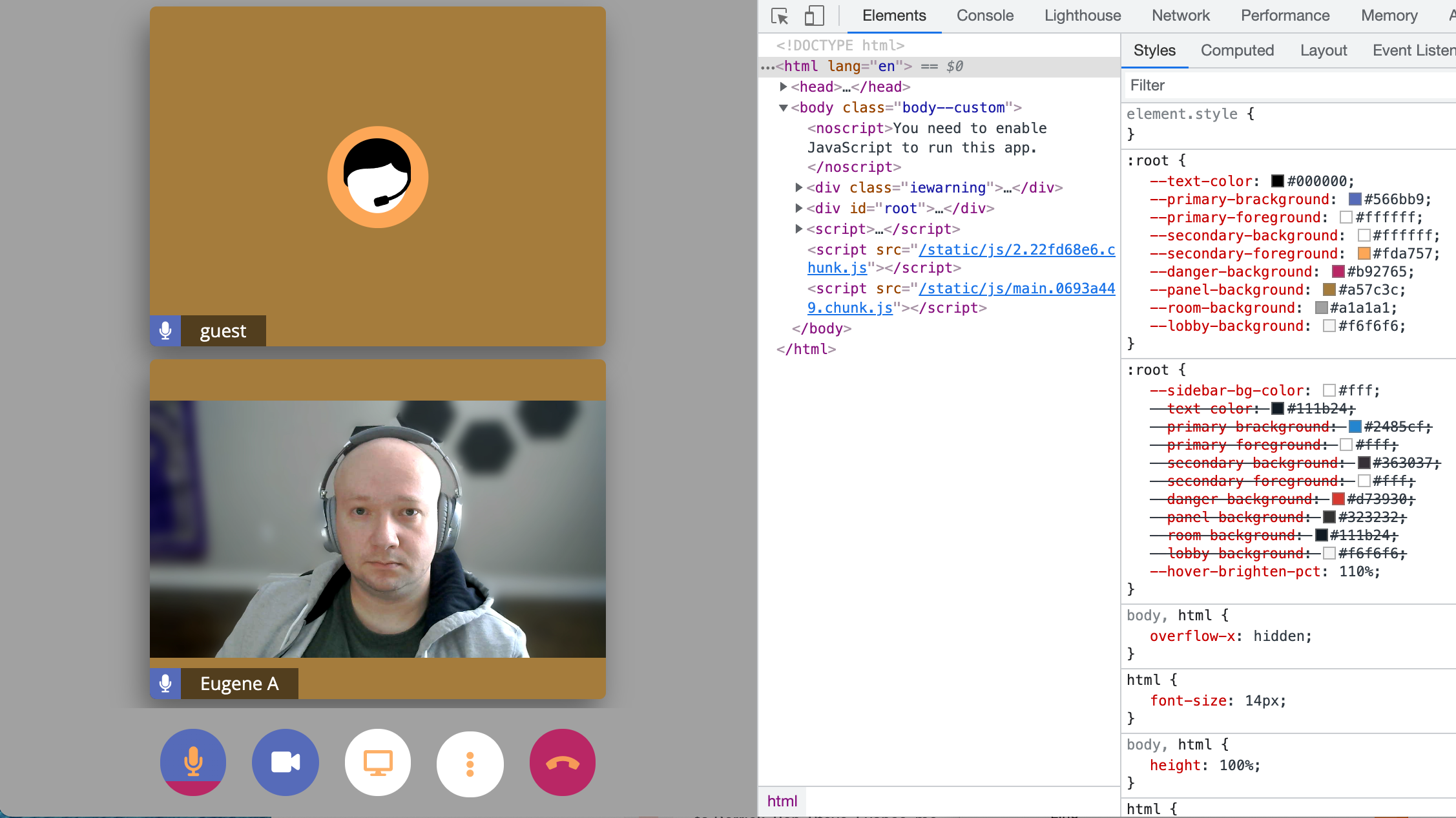
You can try and preview your styles in real time by using the Chrome inspector tools.
1. Enter a live call
2. Open the chrome developer tools, then go to the **Elements** tab and then the **Styles** sub-tab
3. Select the root **** element
4. You will see the variables above defines as CSS variables in the **:root** style element:
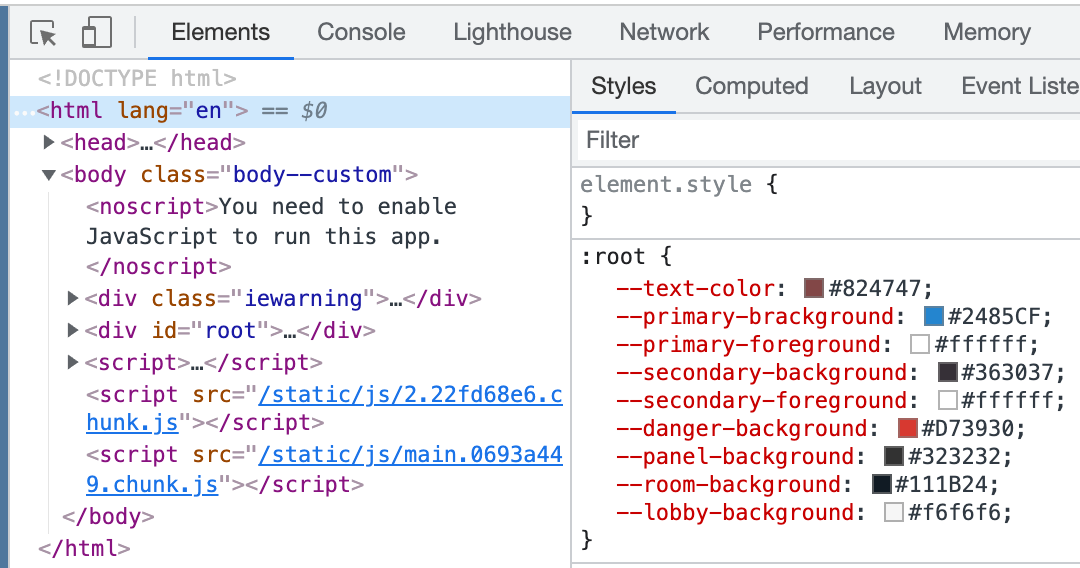
5. Modify the variables in real time to see the changes reflected on the page.
### Example Customizations: