A custom tool makes an organization-controlled operation available to the agent. It includes source code, input definitions, a declared risk level, an execution role, and guidance that helps the agent choose it appropriately.
Create a tool
- Open Tools → New tool, or use Clone on a suitable existing tool.
- Choose Windows · PowerShell or macOS · Bash.
- Enter a useful title and identifier suffix. The platform determines the language and compatible test devices.
- Write the source or use Author with AI.
- Review the properties, source, and inputs together.
- Test on a real, appropriate device as described in section 15.
- Select Save revision to persist an immutable revision.
- When reviewed and ready for use, select Publish and enable. This is a separate rollout decision.
What the properties mean
| Property | How to use it |
|---|---|
| Title | A clear operation/result name that technicians recognize |
| Platform | Windows PowerShell or macOS Bash; fixed after the first save |
| Identifier suffix | Produces an ID such as windows.custom.network.inspect; permanent after first publication |
| Short summary | A concise searchable statement of what the tool does; required for publication, without a trailing period |
| Risk level | Read-only, Low, Medium, or High; choose according to actual effects, not the desired approval behavior. Unspecified must be resolved before publication |
| Execution role | User or Administrator; choose the minimum privileges actually required |
| Timeout (seconds) | 1–300 seconds; default 30. A native operation can outlive a timeout |
| Description | What the operation does, returns, and can affect |
| When to use | Symptoms or situations where this tool is appropriate |
| When to avoid | Limitations or exclusions. This guidance does not add enforcement code to the script |
| Output format hint | Optional Markdown template for the chat execution summary, with placeholders referring to actual output values |
| Tags and examples | Search/category hints and example requests that help selection |
| Parameters | Typed inputs that the agent or a tester supplies |
| Revision/publication notes | Explain changes to other authors; they do not publish the tool |
For each parameter, define its name, type, description, whether it is required, an optional typed default, and any allowed values. Supported types include string, integer, number, and boolean. A default of 0, false, or an empty string is an actual value. Keep source variables and declared parameter names consistent.
Risk is declared by the author. Publication does not test the script or certify its safety. In particular, marking a changing operation Read-only does not make it read-only; it can cause the ordinary policy to run it with less review than intended.
Author with AI and review the proposal
Describe the task, expected output, platform, required role, and what must not change. The captured example used:
Create a read-only Windows tool that outputs the current PowerShell version as JSON. Keep the script very short. No parameters. User role. No device changes.
The assistant can propose source and property changes. It cannot connect to a device or run a test itself.
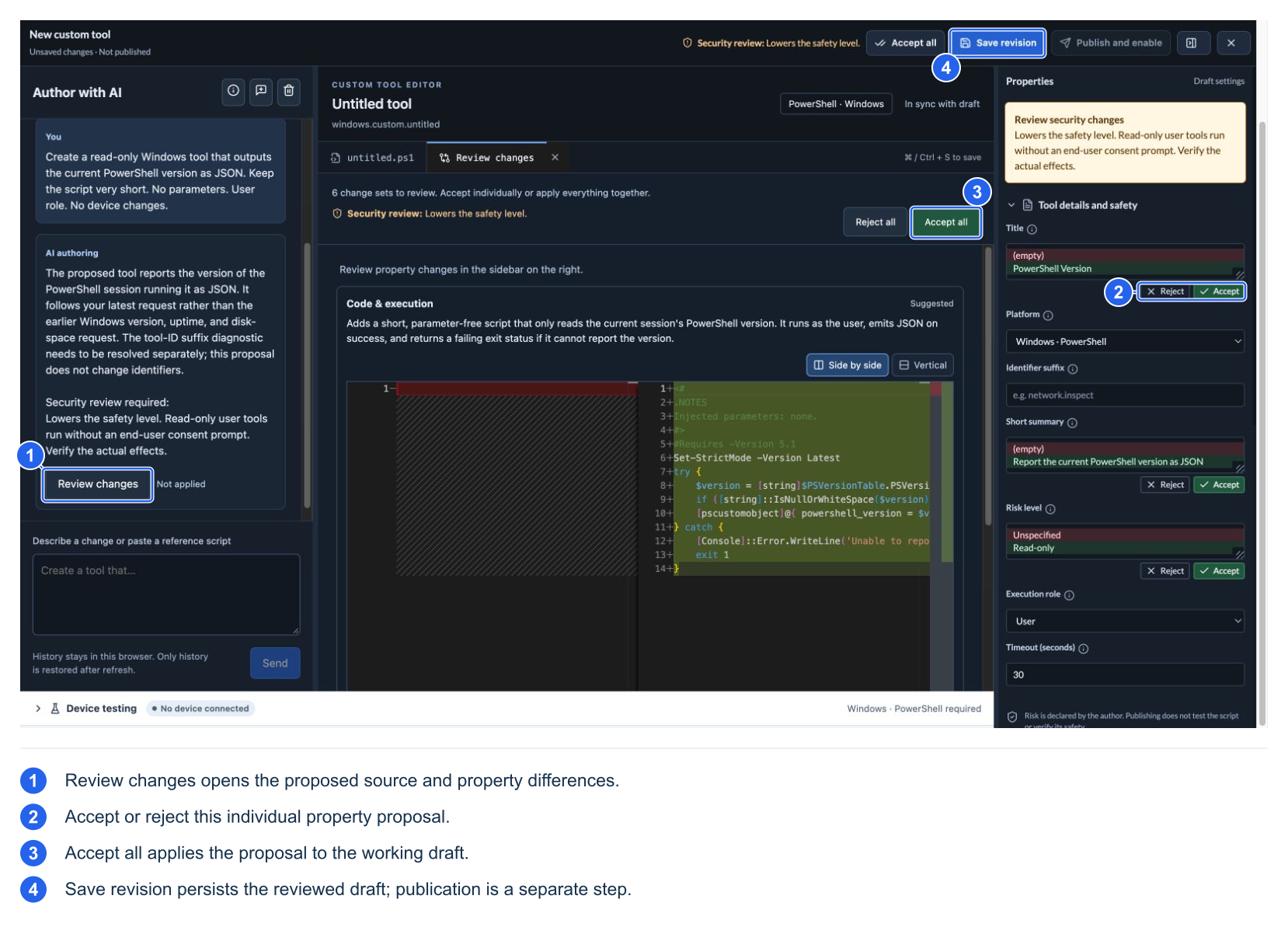
Use Review changes to compare the existing and suggested source. Switch between side-by-side and vertical views when helpful. Review security warnings, such as changing a role or lowering a safety classification.
- Code & execution is reviewed as one group: source, parameters, role, timeout, and risk must remain consistent.
- Descriptive fields can be accepted or rejected individually.
- Accept all applies the selected proposal to the working draft. It does not save, publish, or run it.
- Reject keeps the corresponding current draft content.
- If you changed affected fields after the proposal was prepared, resolve the stale proposal rather than overwriting newer work blindly.
Authoring conversation history is stored in that browser under its user/organization/tool identity. Restored conversation history does not restore an unsaved working script after a page refresh. Closing the overlay normally retains the working draft while that page remains open. Save a revision when you need durable recovery.
The captured first authoring request reached the five-minute deadline. The UI marked it Interrupted · not replayed and offered Retry. A smaller explicit request succeeded. If this happens, check the retained draft and retry deliberately; generation is not automatically replayed.
Understand saving and publication
| Action/state | Effect |
|---|---|
| Apply a suggestion | Changes the working draft only |
| Save revision | Persists a new immutable revision |
| Publish and enable | Makes the latest saved revision eligible for agent use and enables it |
| Edit a published tool | Creates newer draft work; the published revision remains a distinct version |
| Restore a historical revision | Brings that content forward as new revision work; history is not rewritten |
| Disable a tool and Save selections | Withholds it from the relevant new catalog/session configuration |
| Archive | Disables and removes the tool from the active list; archived tools can be shown/restored |
| Row/version conflict | Retains local edits but requires explicit resolution/reload before safely continuing |
Check both Latest and Published version indicators. A successful test of unsaved source is not proof that the published revision contains that source. Validate the exact saved/published revision intended for deployment.