Organization administrators control which built-in and published custom tools the AI Agent can discover and use. Open Organization → Settings and Policies → AI Assist → Tools to manage that selection. Enabling a tool makes it eligible for the agent; it does not execute it or approve future operations.
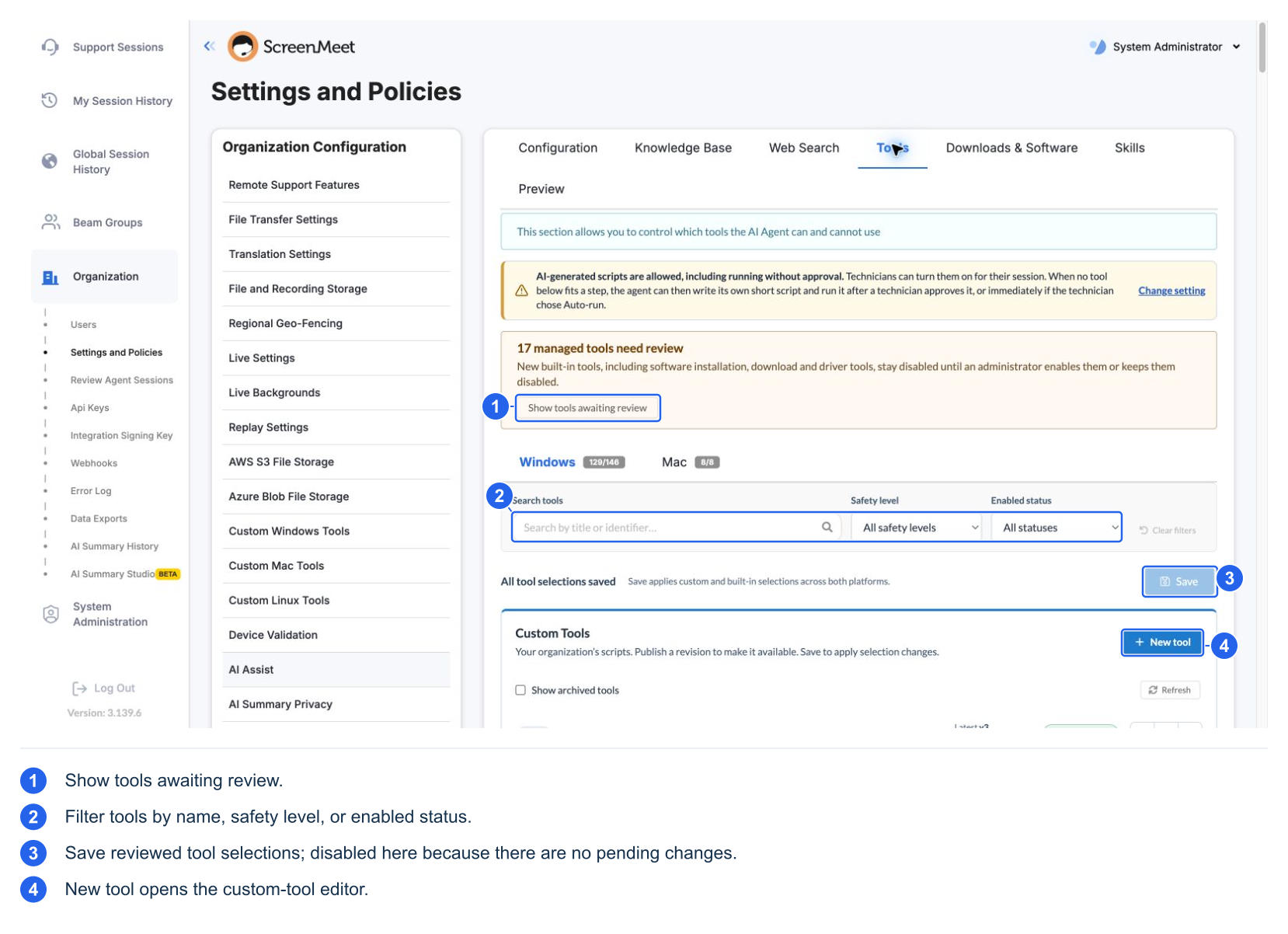
Select the tools available to your AI Agent
- Choose Windows or Mac for the target device platform. Each platform has its own compatible catalog; selecting a tab only changes the view.
- Use Search tools to find a title or identifier. Narrow the list with Safety level and Enabled status, or use Clear filters to return to the full list.
- Select a tool's title to read its Description, When to Use, any Avoid When guidance, and available Source Code. Review its platform and declared safety level before enabling it.
- Use the tool's individual switch to include or exclude it. For custom tools, first confirm that the intended revision is published and the tool is eligible for enablement.
- Review all pending selections. You can switch between Windows and Mac while preparing changes; pending selections are retained across those platform views.
- Select Save. This saves pending built-in and custom-tool selections across both platforms. Look for All tool selections saved before leaving the page.
- Verify the result in a new support session or the next AI preview request. Sessions already in progress keep the tool settings they started with; reopening AI Assist or using Start over does not replace that session configuration.
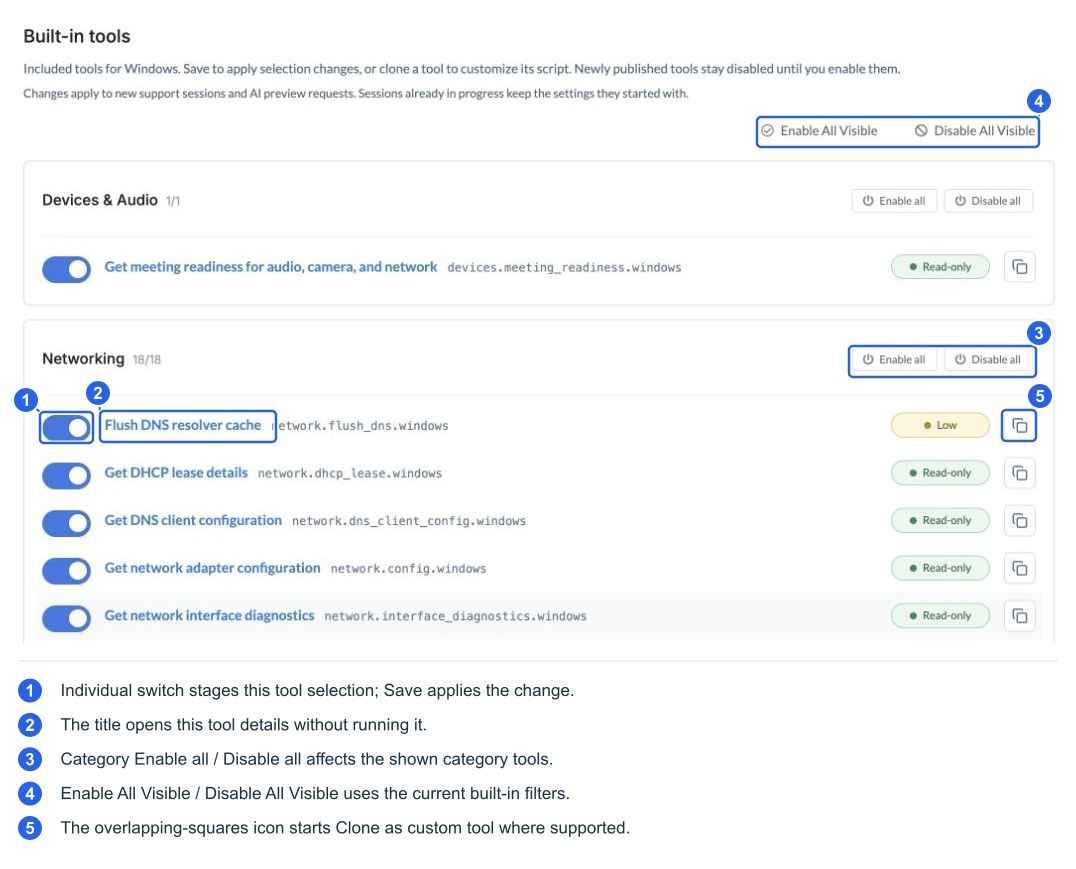
This catalog was filtered to “network.” The selected switches illustrate an existing organization's configuration; no tool selections were changed for this capture.
| Control or indicator | What it means |
|---|---|
| Windows / Mac count | Enabled built-in tools / total built-in tools for that platform; these totals are independent of the search/status/safety filters |
| Search tools | Filters titles and identifiers; a missing row can reflect the search rather than an unavailable tool |
| Safety level | Filters by the tool's declared risk. It does not change the tool's risk or the organization's approval settings |
| Enabled status | Shows enabled, disabled, or awaiting-review tools; Awaiting review focuses on managed built-in decisions |
| Individual switch | Stages that tool's enable/disable decision; select Save to persist it |
| Category count | Enabled / total within the tools currently shown in that category |
| Unsaved tool selections | Pending changes exist; they are not the saved session policy yet |
| All tool selections saved | No pending selection changes remain on this page |
Inspect or customize a tool
A tool title opens its detail view so you can inspect its purpose and available source before deciding. Copy copies the source. Some server-side actions have no native script source; the detail view reports that instead.
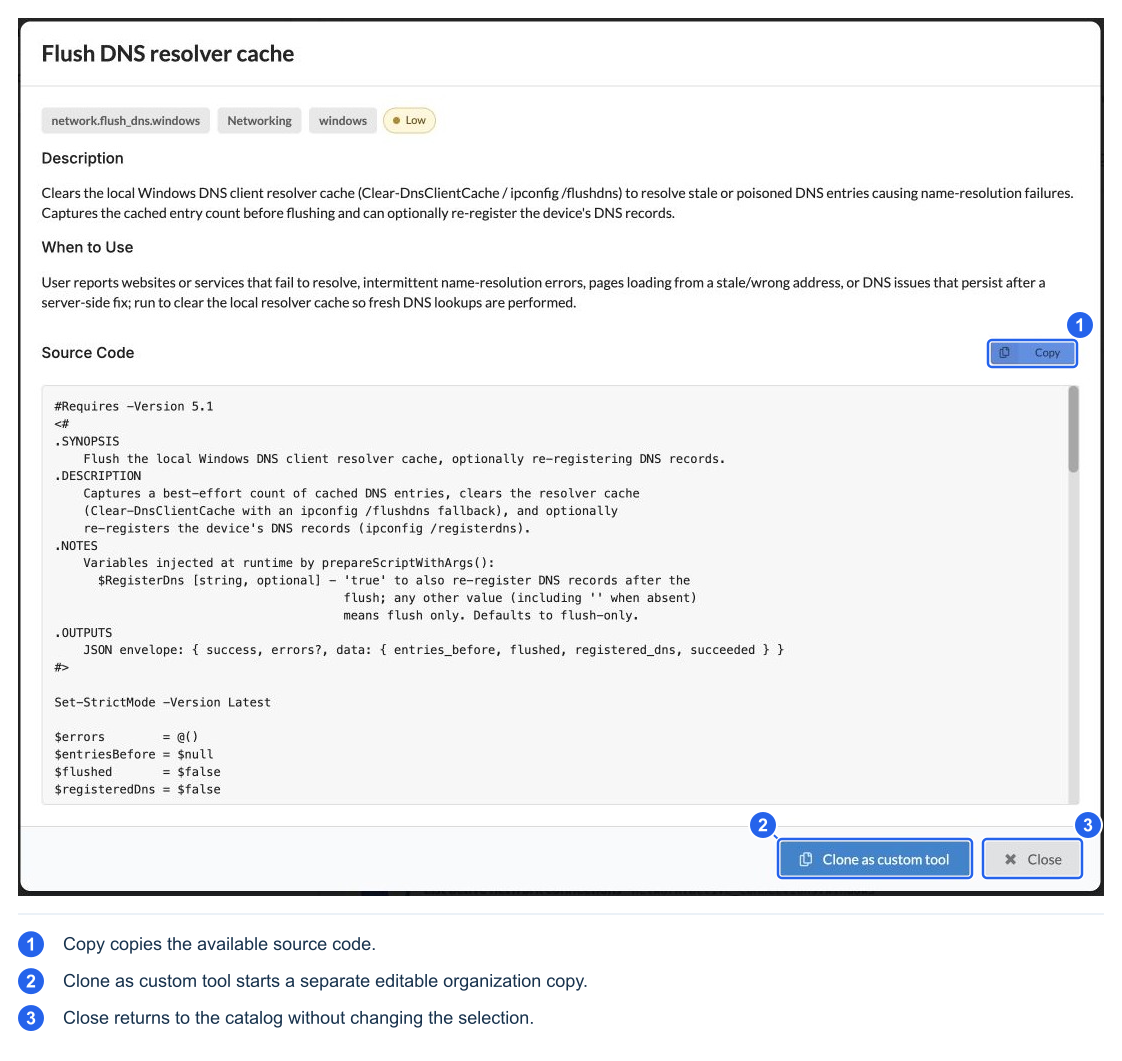
Where supported, the overlapping-squares Clone as custom tool action starts a separate organization-owned copy. It does not edit the bundled tool. Review, test, save, publish, and select the custom revision through the custom-tool workflow. Some governed or host-specific capabilities cannot be cloned; inspect the disabled action's explanation.
Use bulk selection carefully
Enable All Visible / Disable All Visible operate on the filtered built-in tools shown for the current platform. A category's Enable all / Disable all applies to the shown tools in that category. Check the current search, safety, and status filters before using either scope, then review and Save the resulting selections. The custom-tool list has its own individual enablement and publication controls.
For example, filtering to Read-only and enabling the visible tools changes that filtered selection; it does not disable changing tools that are hidden by the filter. Use All statuses and Clear filters when reviewing the complete platform selection.
Understand the effect on Agent behavior
A disabled built-in tool is unavailable for discovery and execution under the session's effective tool policy. The agent can use an eligible enabled alternative, ask for clarification, or explain a limitation. Enabling a skill does not re-enable its disabled tools.
Tool availability, execution approval, and administrator privilege are separate controls. An enabled Low-risk tool still waits when Low is Human-in-the-loop, and an enabled admin-role tool still needs native administrator access. Generated scripts have their own allowance and session mode; the Tools page's generation banner links to that separate configuration. Built-in switches do not turn generation on or off.
Review new tools and opt in
An organization starts from a defined built-in tool baseline. Newly published capabilities outside that baseline remain disabled until an administrator makes an explicit decision. A library update does not automatically enable every new tool.
- Open Tools.
- Select Show tools awaiting review when the notice appears.
- Use Windows/Mac, search, safety, and status filters to narrow the list.
- Open a tool to read its purpose and details. Consider both its risk level and its required role.
- Enable the capability if the organization intends to use it, or select Keep disabled to record that it was reviewed and intentionally left off.
- Select Save to persist the decisions. Confirm that the selections are saved.
- Validate in a new support session or a new AI preview request.
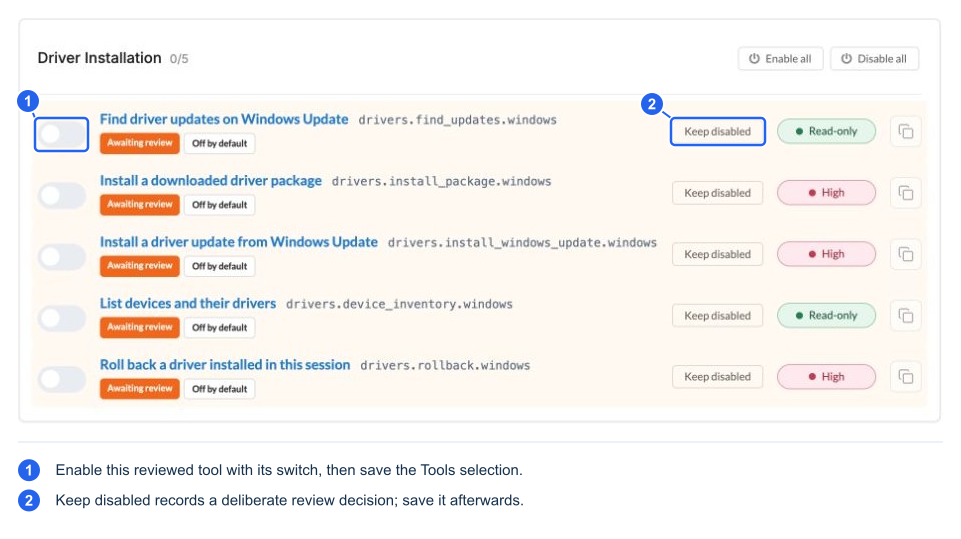
The example shows default-off software and driver tools. Counts change with the released catalog and organization decisions.
| Tool state | Meaning |
|---|---|
| Enabled from the organization's baseline | Available unless another requirement blocks it |
| Explicitly enabled | The administrator opted in |
| Explicitly disabled / Keep disabled | The administrator reviewed it and kept it off |
| Awaiting review | No administrator decision exists for this capability outside the baseline; it stays off |
| Globally unavailable | The released catalog does not make it usable; organization selection cannot make it executable |
Keeping a tool disabled clears its pending-review decision once saved. Simply ignoring a pending row leaves it awaiting review. An empty filtered list does not mean that the whole catalog is empty.
The Software Installation and Driver Installation suites are off by default, including their inventory/search/download operations. Opting in to an installer alone does not enable all of its supporting operations. Enable only the complete set of capabilities your approved workflow needs.
If managed-tool configuration cannot be validated, the host must withhold managed tools. Treat an unexpectedly empty catalog as a configuration problem; do not try to work around it with chat instructions or generated code.