Run test performs a real operation on the connected device. It runs the current editor buffer, including unsaved changes. It is not the simulated administrator Preview and does not require the tool to be published.
Use a test device and a script whose effects you understand. The test author's explicit Run test action authorizes that run; the Harness chat's normal plan-review interaction is not the testing UI. Native connection, platform, Remote Control, and administrator requirements still apply.
Connect the right device
- Expand Device testing at the bottom of the custom-tool editor.
- Choose one of Your open support sessions, then select its Attach action. You need normal access to that session, and its device must match the draft's platform.
- Alternatively, use Create new session, give the device's user the PIN/link, and wait for the device to connect. Request administrator access on connect only if your test needs it.
- Wait for Ready and Remote Control granted. Confirm the session/device before dispatching.
- Use Open viewer when you need to inspect the remote screen or complete a normal permission workflow.
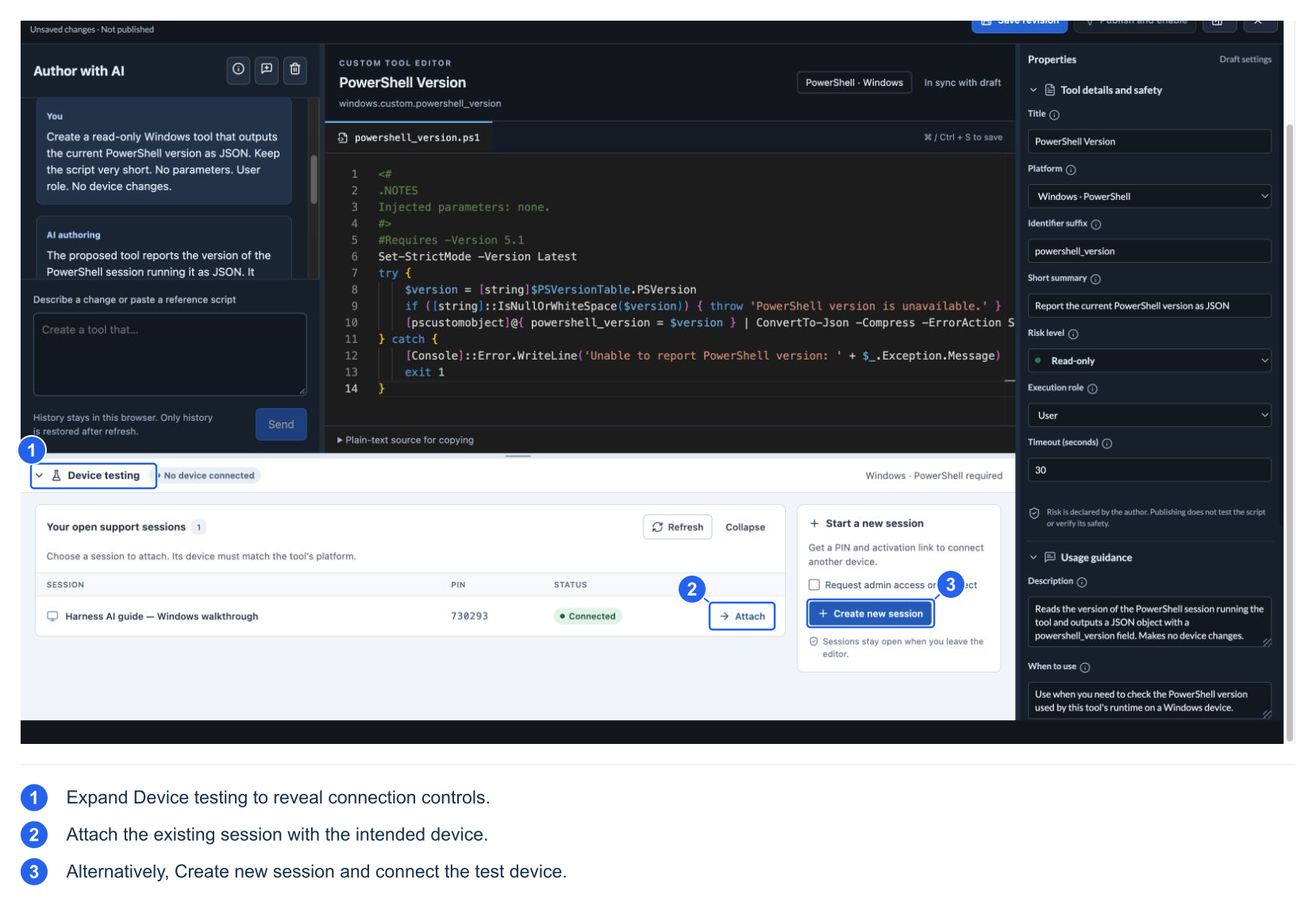
The session picker can attach to a session that is also open in the viewer.
Windows scripts need a compatible Windows device; macOS Bash scripts need a compatible Mac. An Administrator script needs actual administrator execution access, not merely an admin-looking user account. A permission denial, platform mismatch, or disconnected device should block testing until resolved.
The editor's testing connection and a normal viewer connection can coexist. They may affect which connection currently has Remote Control. In this walkthrough, the viewer temporarily fell back to Ask while testing held control. After testing, detach and restore viewer control if needed before continuing Agent work.
Set inputs and run the current buffer
- Inspect the script, role, timeout, and Test inputs.
- For a parameterized tool, distinguish omitted input from explicit values. Test meaningful cases such as empty string,
0, andfalsewhen they are valid for the tool. - Select Run test once.
- Watch Running… and the elapsed time. Wait for the operation's actual result before trying again.
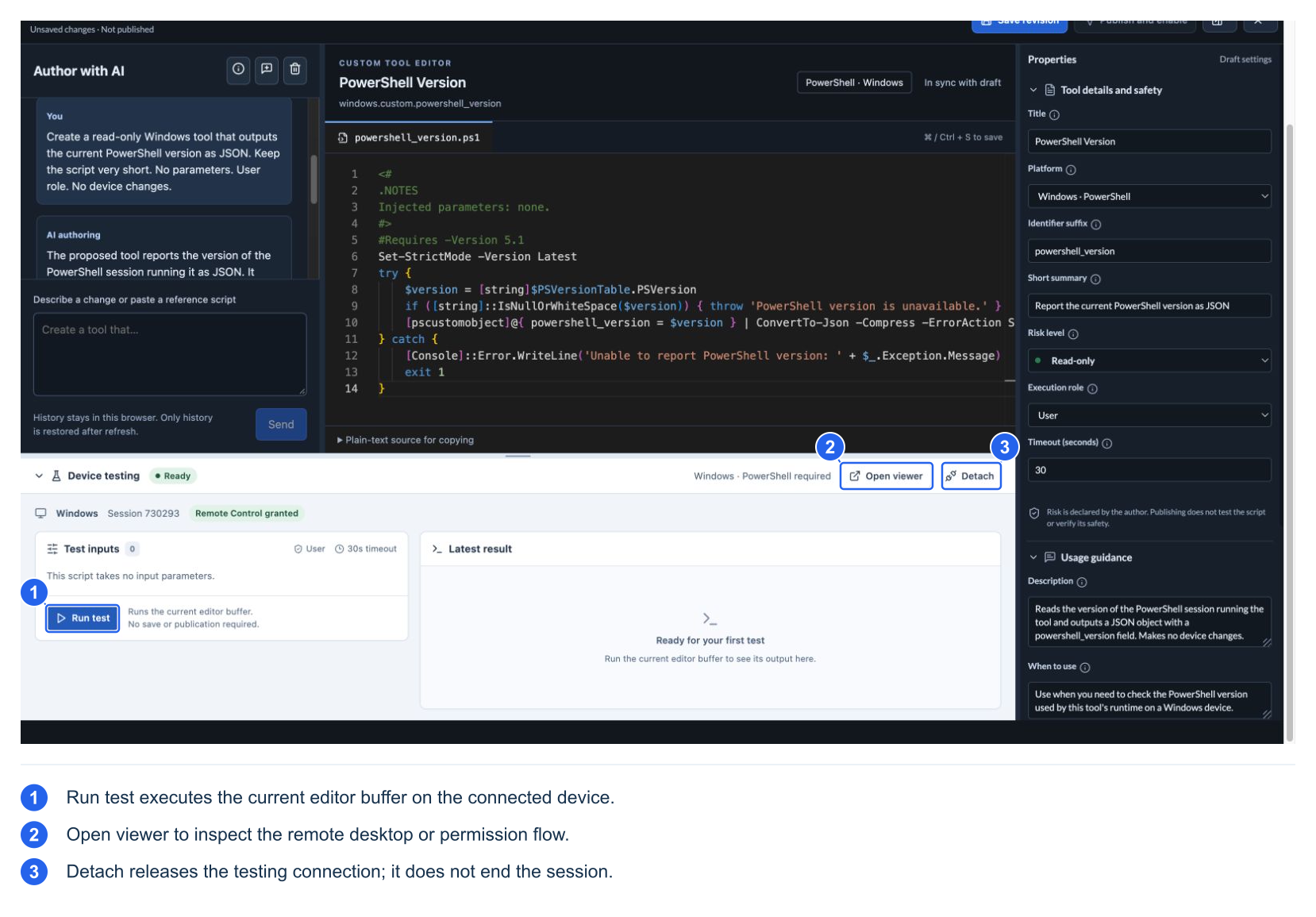
No save or publication is required. The draft in this example only reads the current PowerShell runtime version.
Inspect the result
The result panel shows execution state, duration, and exit code. Use Standard output and Standard error to inspect both streams; Copy exports the selected stream.
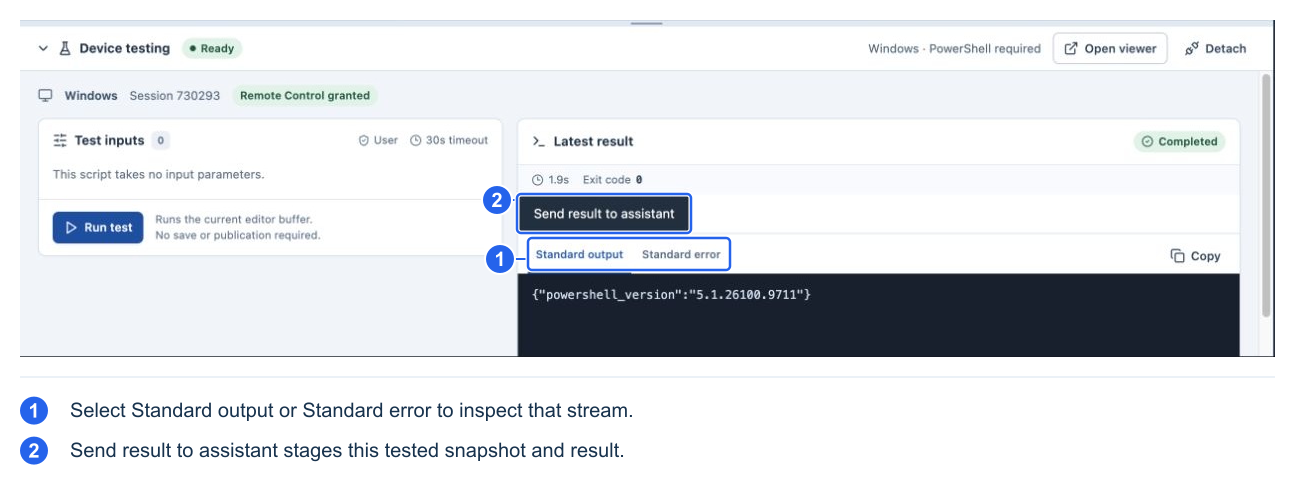
The captured run completed in 1.9 seconds, with exit code 0, and returned:
{"powershell_version":"5.1.26100.9711"}
That proves this exact draft ran successfully in that test's context. It does not establish that every script, parameter value, Windows version, privilege state, or future publication will work.
Use the result to improve the script
Select Send result to assistant to stage a test attachment. Choose whether to include stdout and stderr, inspect the attachment, edit the prepared question, and then select Send. The attachment includes the tested script snapshot, inputs, exit status, and any truncation indicator, so the assistant can reason about the code that actually ran.
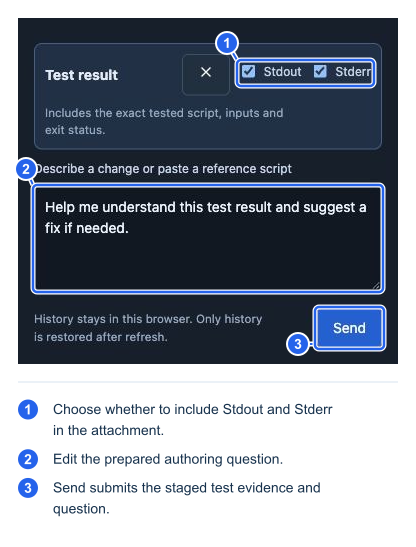
For example, ask “Why did this parameter fail?” or “Keep the script read-only and handle this empty result.” Review proposed changes, apply them to the draft, and explicitly run another test. Sending a result does not automatically execute the assistant's suggested fix.
If you edit source, parameters, or execution properties after a run, an older result can refer to an earlier snapshot. Check that relationship before deciding the current draft is validated.
Handle timeouts and connection changes
| Event | Expected behavior |
|---|---|
| Close the editor overlay | Releases the testing connection; retains the editor's working buffer/latest known result while the page remains open |
| Reopen the editor | Does not reconnect automatically; attach deliberately |
| Detach or leave the tool | Releases the test connection; does not end the support session |
| Detach after dispatch | Does not guarantee cancellation of the native script already running |
| Test timeout or lost result | Outcome may be unknown; inspect/recover the earlier run before repeating an operation with effects |
| Script still running after timeout | Another run can remain blocked until the outstanding job resolves |
| End the support session | Follows the normal session lifecycle; this is separate from closing the editor |
Before publishing, test expected output, invalid/omitted inputs, no-match/error behavior, role requirements, and actual effects. Verify state-changing scripts by checking the resulting device state, not just an exit code. Keep production devices out of exploratory tests that can interrupt users.