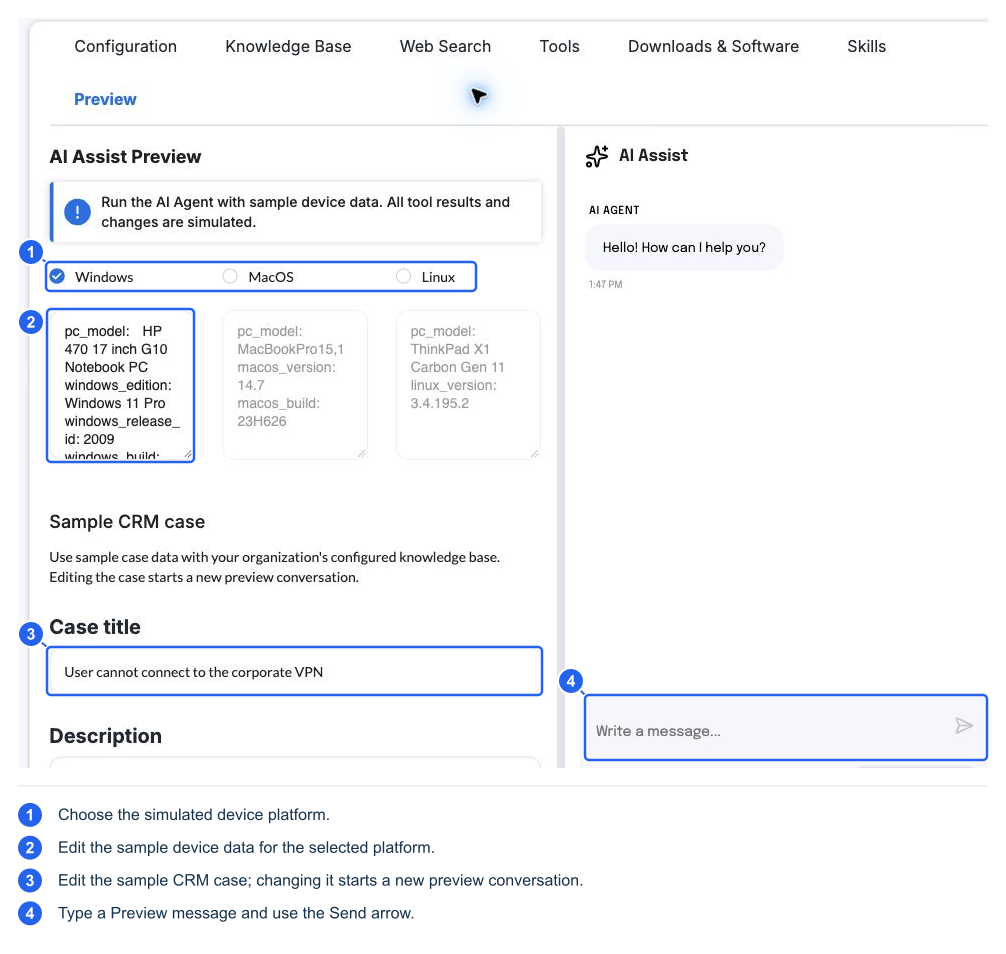
Preview runs AI Assist with sample device information and optional sample CRM data. Its tool outputs and device changes are simulated. KB searches and web-source tests can still contact real configured sources; Preview is not a guarantee of offline operation.
- Save the organization settings you want to evaluate.
- Open Preview and choose the sample platform.
- Review/edit the sample device information and case title, description, notes, and prior conversation.
- Ask a representative support question and inspect the response/source behavior.
- Change one relevant setting at a time, save it, and start a fresh comparison when appropriate.
Editing the sample case starts a new preview conversation. Linux is an Ask-only preview. The captured build also showed Agent unavailable in Preview; this is listed in the QA evidence and should be rechecked on the target build. Use a real support session to validate actual tool dispatch, native permissions, role, reconnection, installer behavior, and custom-script execution.
Preview and Test search answer different questions. Preview checks AI behavior in context. KB Test search checks a provider query without the AI answer. Web Run test performs a focused model-assisted public search. Custom-tool Run test performs an actual device script operation.