Some operations can run as the signed-in user. Others need administrator privileges. Harness uses the host's current privilege report; it does not infer elevation from your account name, a message saying “I am admin,” or a tool's successful read-only result.
When the offer appears
If a necessary step needs administrator access and the session can request it, a card titled Administrator access appears directly in chat. It explains the reason or lists the operations that require it. You can also explicitly ask the agent for administrator access in Agent mode.
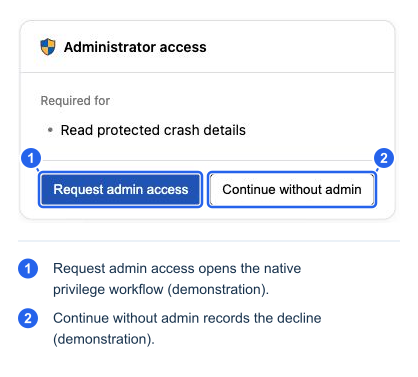
Component demonstration with sample data. This is the actual card UI, not a fresh elevation on the captured Windows device.
Request access and continue
- Read what needs administrator access.
- Select Request admin access on the card. Typing “yes” does not open the privilege dialog.
- Complete the normal ScreenMeet Windows UAC/administrator-credentials flow or the corresponding macOS access dialog. The required user approval and credentials depend on the client deployment and device account.
- Watch the card's progress. It can show Admin request sent. Waiting for the device… and Waiting for approval on the device….
- After the host confirms the grant, the card shows Administrator access granted. Work parked on that request can continue automatically.
- If the resumed operation still requires a plan or script approval, review and approve that operation separately.
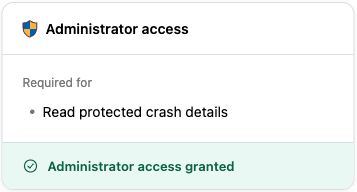
Component demonstration of the granted state. A grant changes execution privilege; it does not approve the proposed device change.
The native dialog is the existing ScreenMeet access workflow. Secure-screen visibility and full administrator rights are separate properties, particularly with installed Windows clients. See ScreenMeet's Request Administrator Permissions documentation for the deployment-specific UAC workflow.
Continue without administrator access
Select Continue without admin if you do not want to elevate. The card records that choice. The agent should use available user-role alternatives, explain the limitation, or provide manual steps. It should not repeatedly offer elevation after a decline unless you explicitly ask for it again.
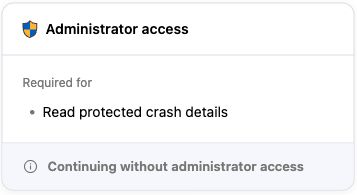
Component demonstration of a technician declining the offer.
| State or message | What it means | What to do |
|---|---|---|
| Waiting for the device/user | The request is in progress | Check the device prompt; avoid opening concurrent requests |
| The request was denied on the device | A device-side refusal occurred | Respect the refusal; continue without admin or explicitly request another attempt if appropriate |
| Invalid administrator credentials | The access attempt failed authentication | Correct credentials through the normal privilege UI; do not put credentials in chat |
| No response from the user/device | The attempt timed out | Check connection and the pending device dialog; retry deliberately |
| Remote control permission was revoked / device disconnected | The access workflow lost a prerequisite | Restore the ordinary connection/permissions before trying again |
| Try again | An earlier attempt ended without a grant | Check its reason before retrying; after repeated attempts, continuing without admin is emphasized |
| Still available | Work continued without waiting on this offer | The card can remain available, but a later grant must still match the outstanding work |
| This offer is no longer active | The offer expired, for example after reset | Use the current conversation and request rather than an old card |
Captured-environment limitation: the live Windows session used for these examples already reported administrator access. The offer/grant/decline pictures therefore use the component demonstration. A complete fresh-elevation acceptance run, including the native approval prompt and automatic continuation, remains a QA scenario.