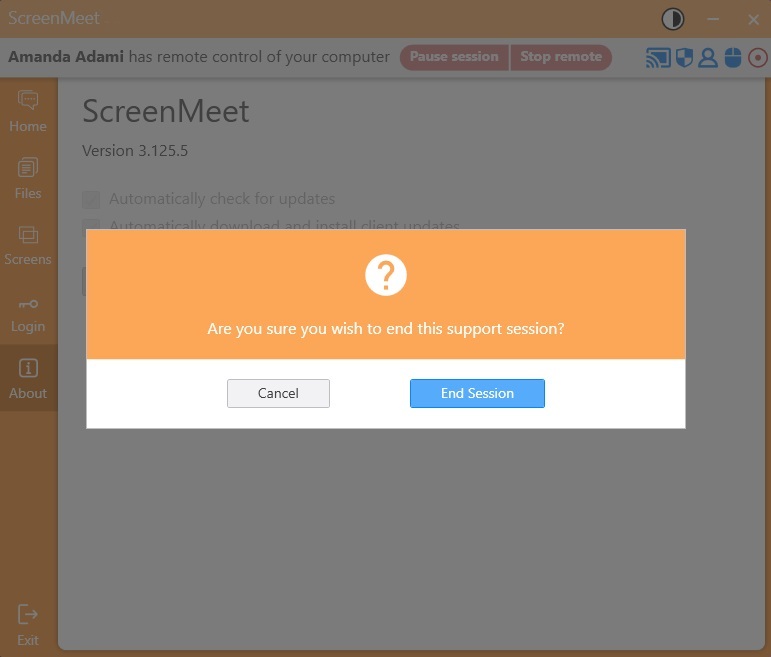
We’re excited to introduce the new ScreenMeet Remote Support client for Windows.
Version 3.125.5 introduces a refreshed design while keeping all the familiar features you rely on—plus many new features and improvements. Find the download to the newest version here.
Agents will start and run sessions the same way as before—no changes required.
There are no changes to the download process — end users will continue to download the client the same way as before.
End users will notice an updated look with clearer screens for PIN entry, user consent, file transfers, chat, and session controls.
The features you know remain, now presented in a simpler, more intuitive design.
Many enhancements were made to improve both the agent and end-user experience.
What is new?
In-Session Logs: By clicking the caret in the bottom right corner of the application you can open session logs detailing what has been done in the session.
Remote Support Branding: Allows your ScreenMeet Administrator to customize branding for the Remote Support client.
Below are images of the new UI you can expect your end-users to see when they are using the new Remote Support Windows client.
Toolbar Icons: The toolbar icons provide a quick visual indicator of whether features like screen sharing, remote control, and recording are enabled.

.png) Toggle High Contrast Mode | Minimize | Exit
Toggle High Contrast Mode | Minimize | Exit
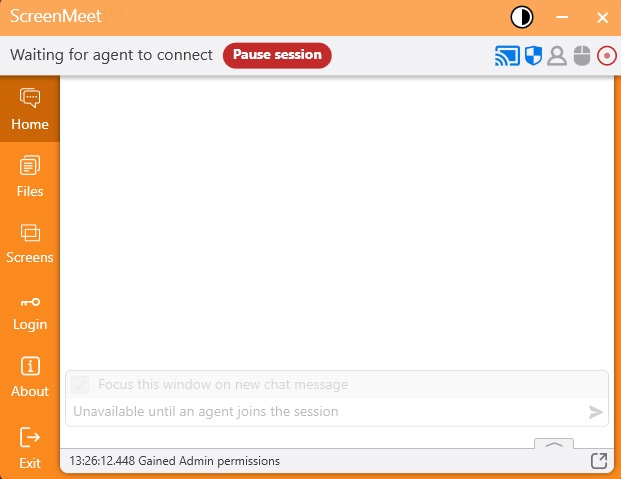
 Connected and streaming your desktop
 Full Administrator access granted
 Agent is connected to the session
 Agent has remote control of your computer
 Session is being recorded
PIN Code: Screen the end users will see when they open ScreenMeet.
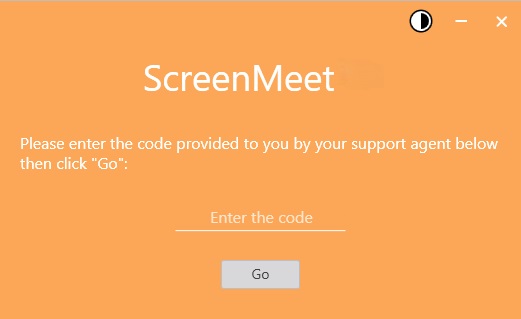
End User Consent: (text may vary depending on your organizations settings)
.jpg)
Home: This is the first screen your end user sees once they enter a session. From here, they can access all controls and features.
Files: End users can upload files to share with the agent. If the agent uploads a file, it will appear here with options to view the file path or download the file.
.jpg)
In-Session Logs: This new feature allows both the agent and end user to review session logs together in the active session for quicker and easier troubleshooting. Click the arrow at the bottom right of the screen to pop-out the session logs!
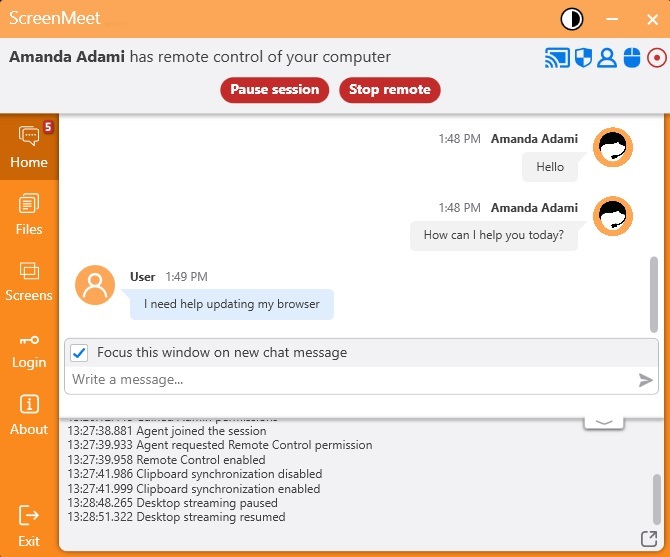
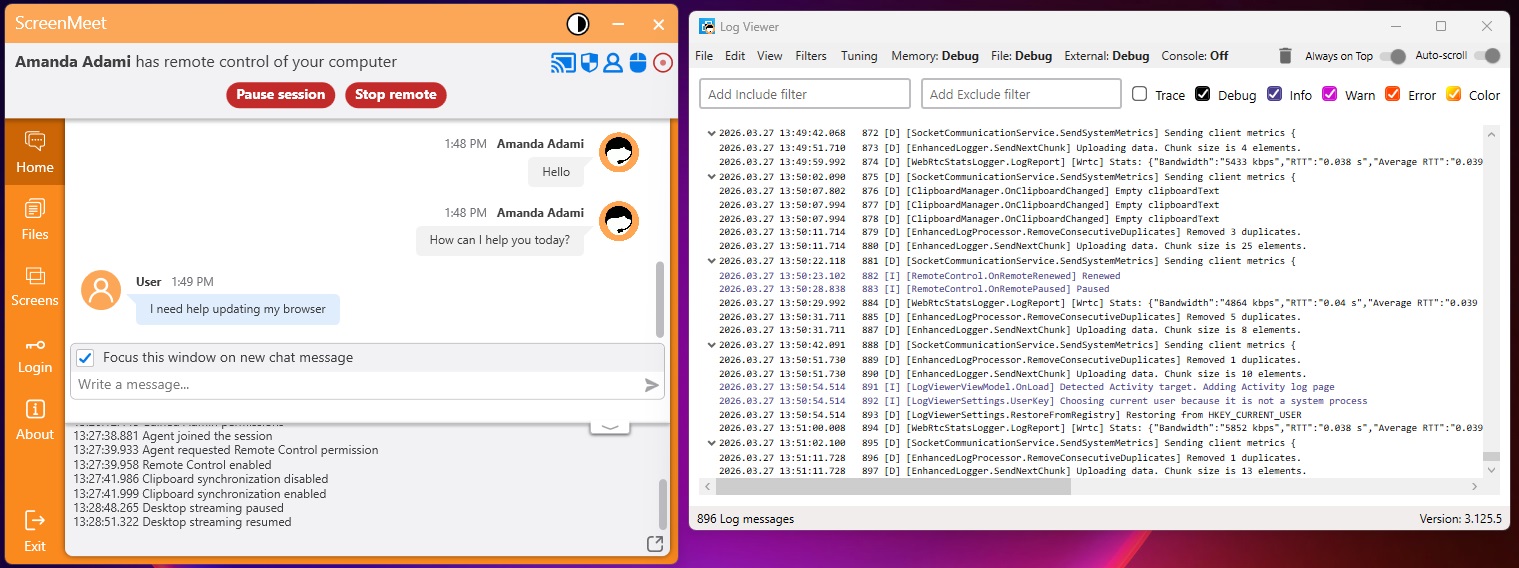
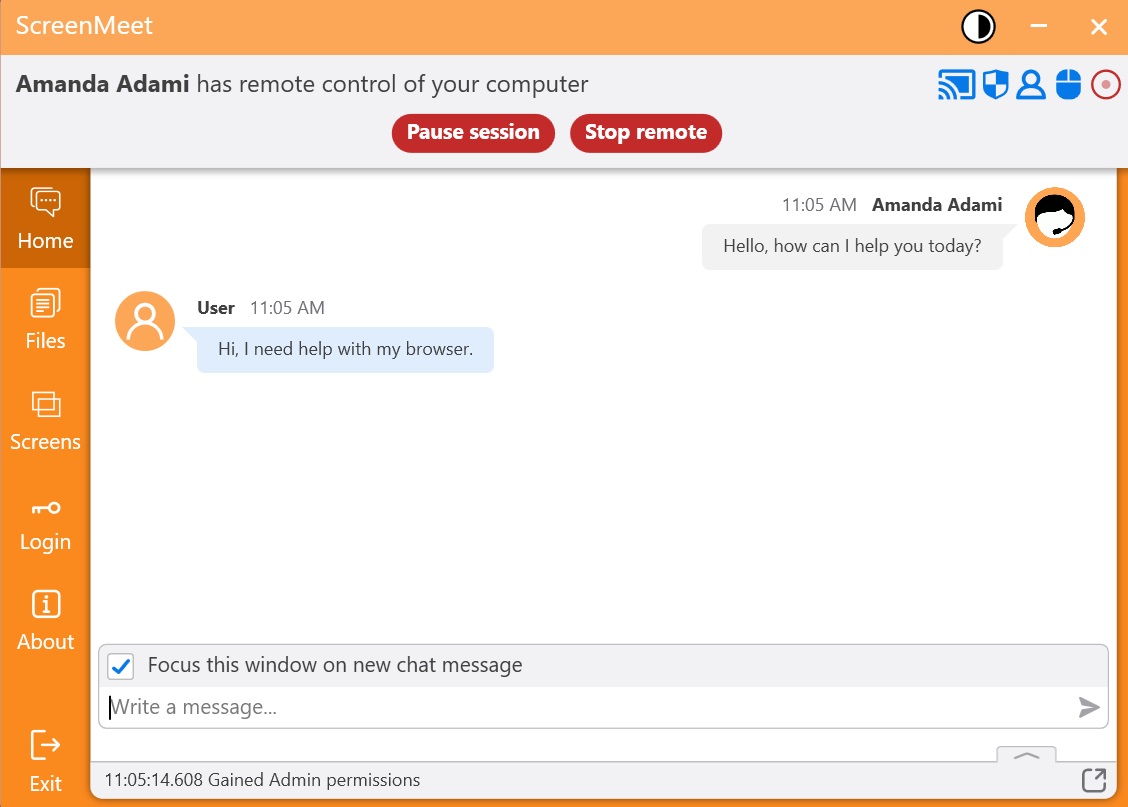
Chat: The in-session chat enables real-time communication. The chat window can be focused when new messages arrive.
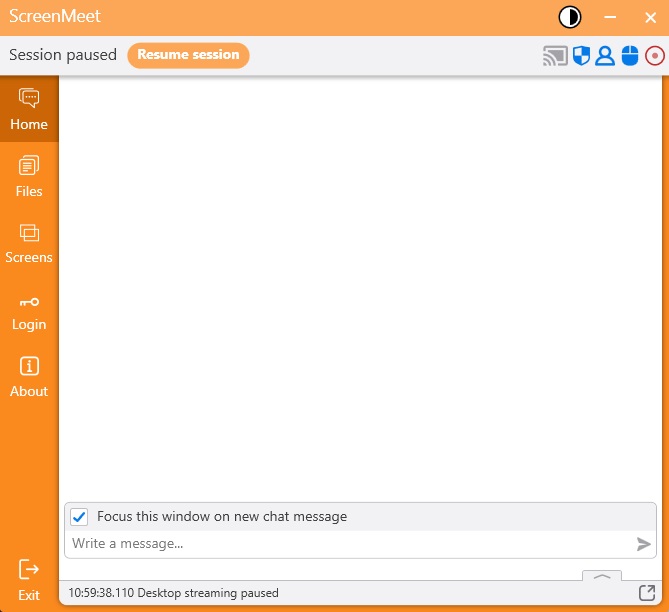
Paused Session: End users can pause the session, preventing the agent from viewing their screen until they resume the session.
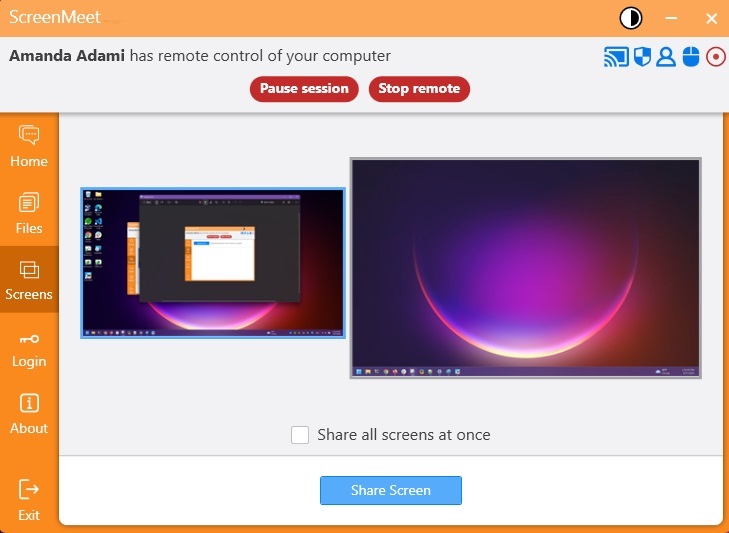
Screens: Allows your end users to select which screen to share or share all screens at once.
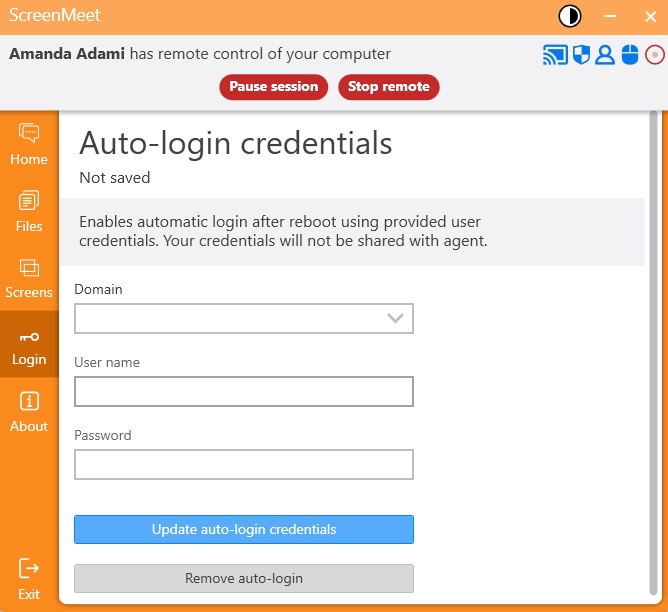
Login: Allows for automatic login after rebooting the device using the end user’s credentials.
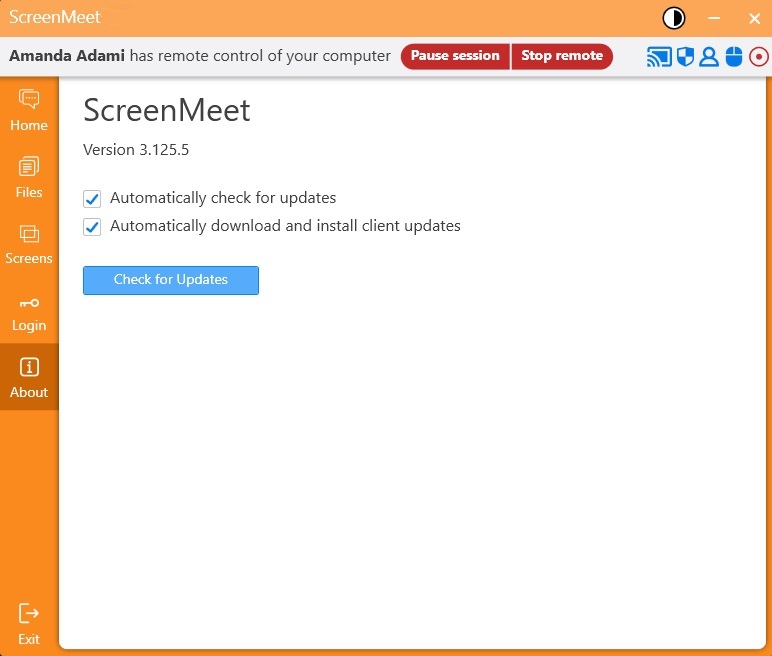
About: Shows the version of the application currently installed. Plus, options to check for updates if that has been enabled for your users.
Exit Session: After clicking ‘Exit’, the end user will see a confirmation pop-up to ensure they want to end the session.