Overview
With the Developer Trial Account, you will be able to test out ScreenMeet's Cobrowse functionality on our demo site.
Accessing the Demo
- Login to the ScreenMeet Agent Portal using your Developer Trial Account.
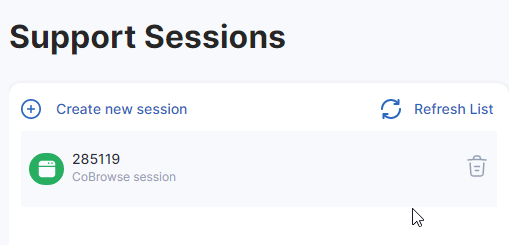
- Navigate to the Cobrowse tab of the My Sessions screen:
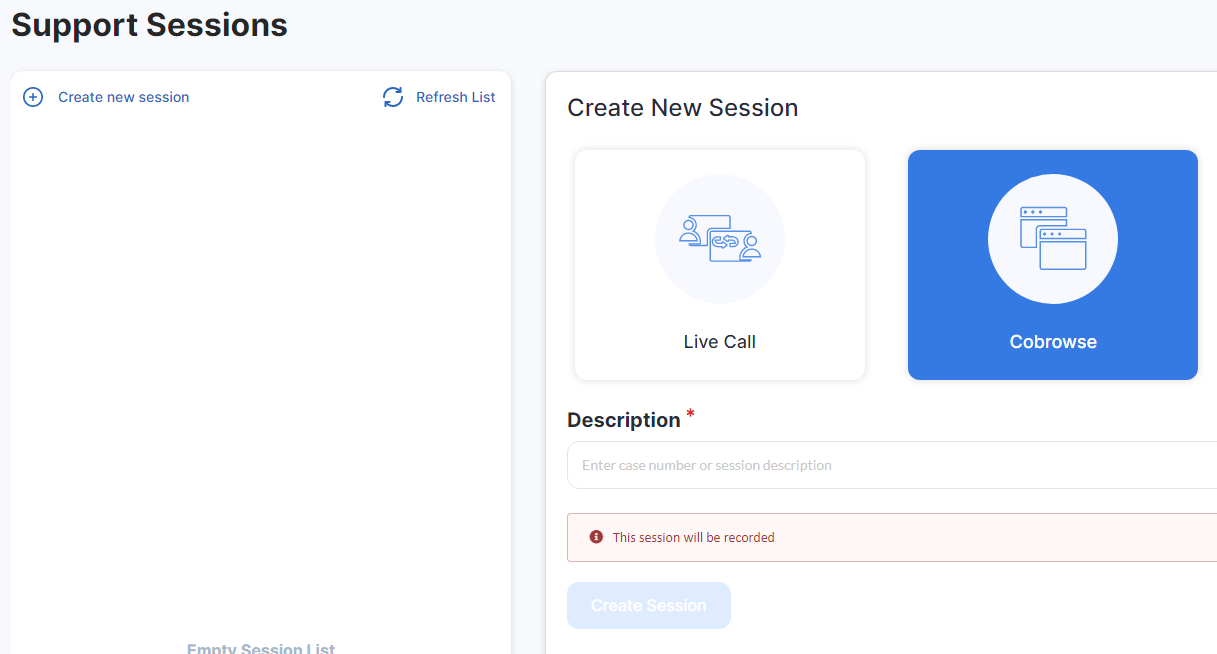
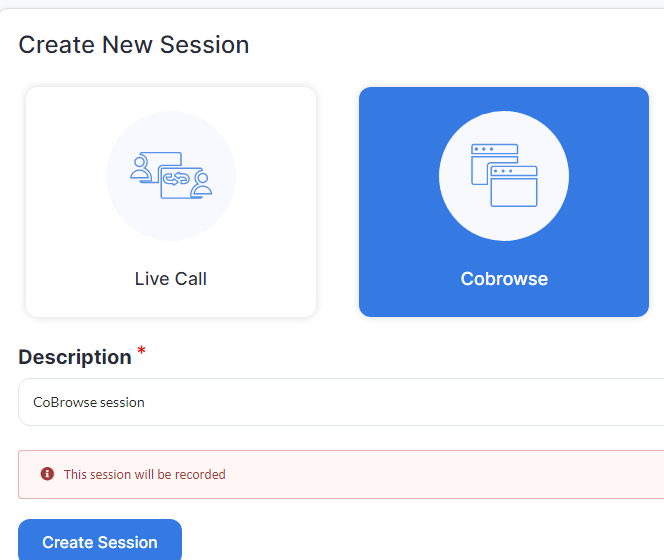
- Input text into "Description" field and press the "Create Session" button:
- Note the session code. (In this case, it is 285119):
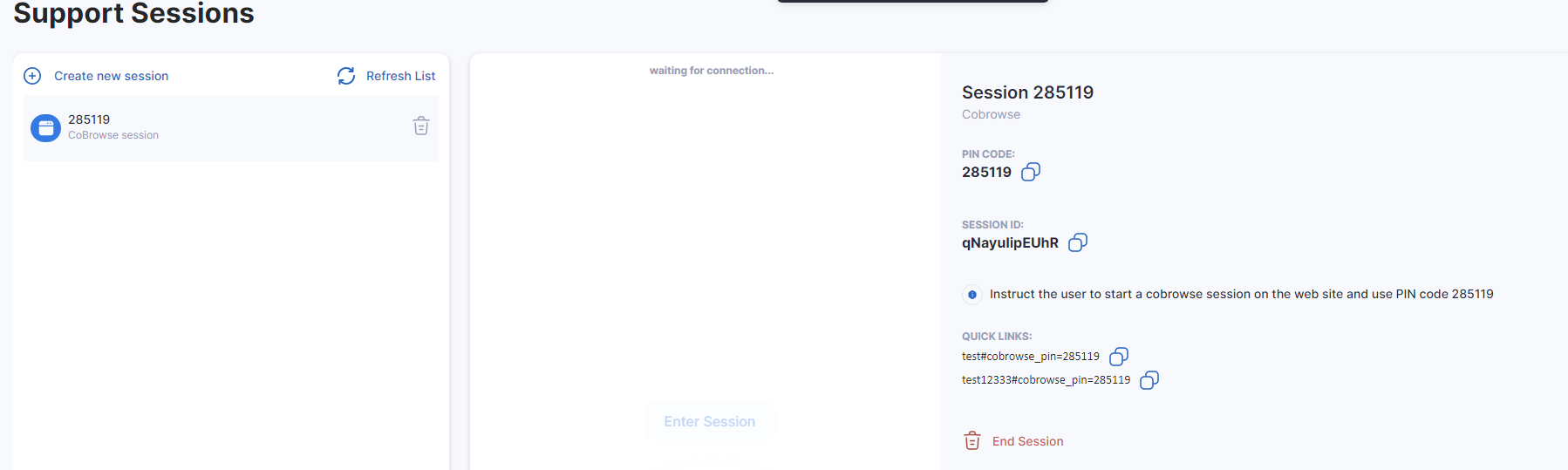
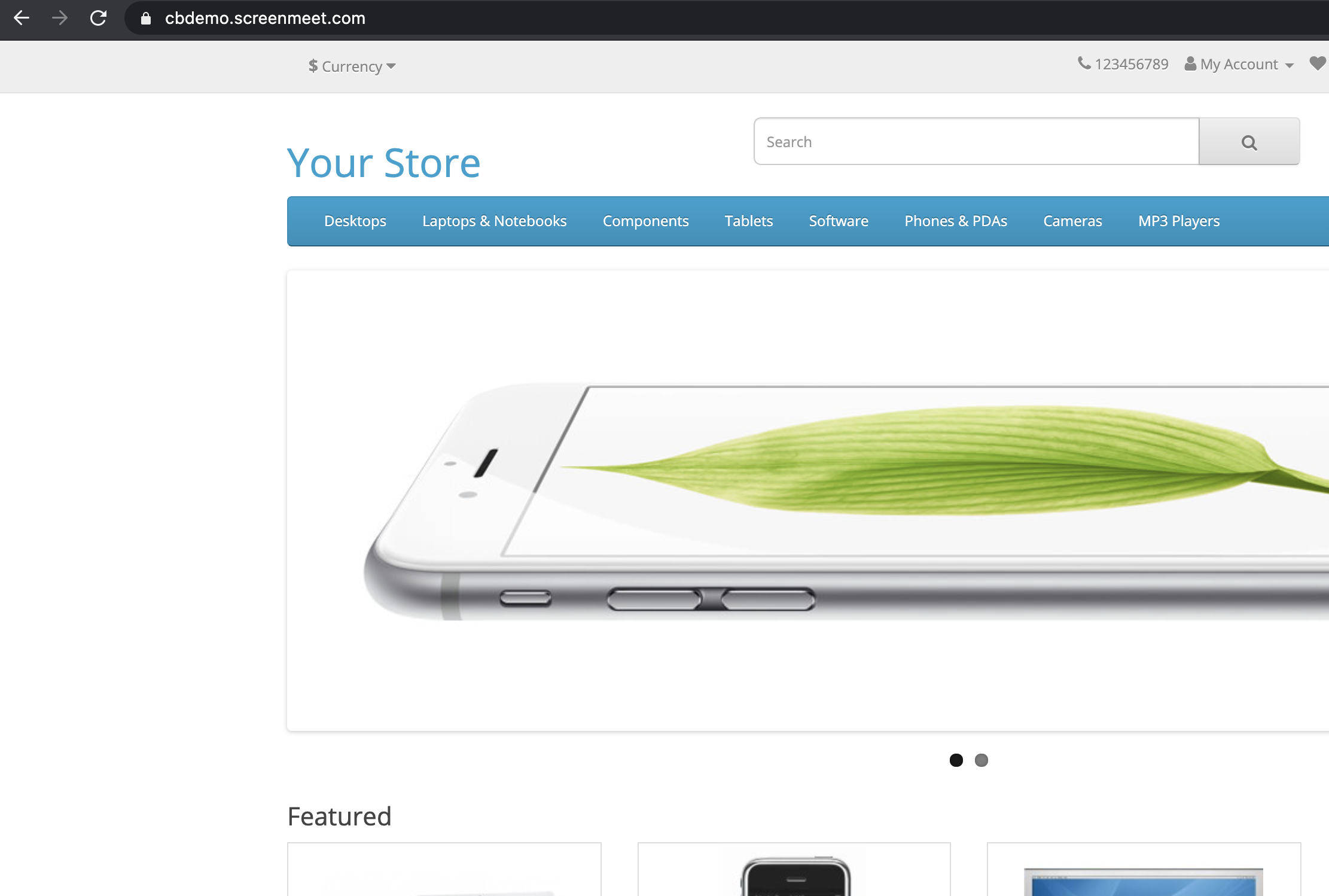
- In a separate browser (new tab/window, separate browser), navigate to the Cobrowse Demo Site.
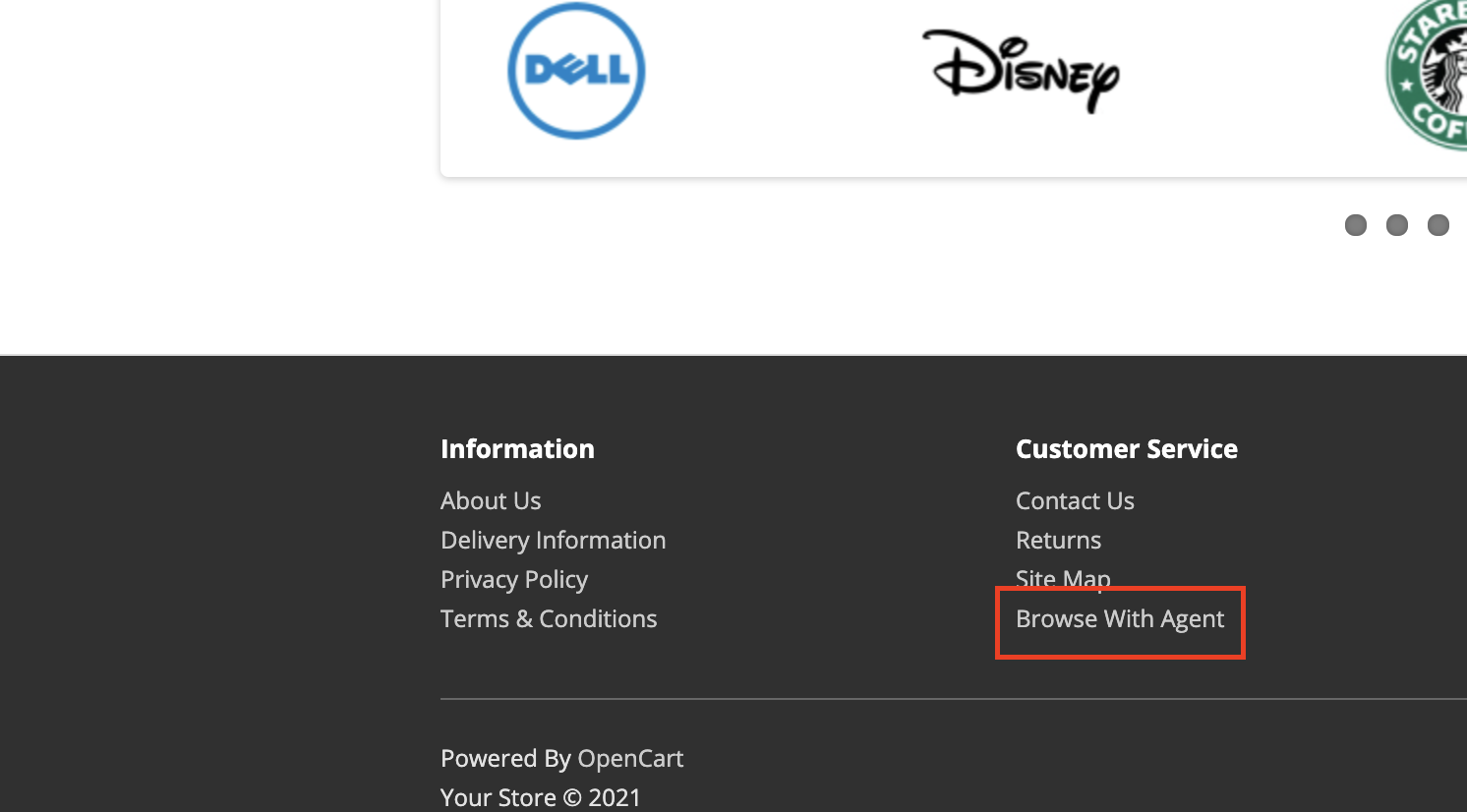
- Scroll to the bottom and click "Browse with Agent":
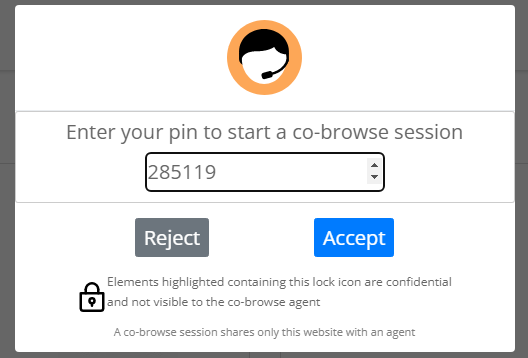
- When presented with the dialog, enter the session pin from above. Upon clicking the Accept button, the customer's browser is now joined to the session:
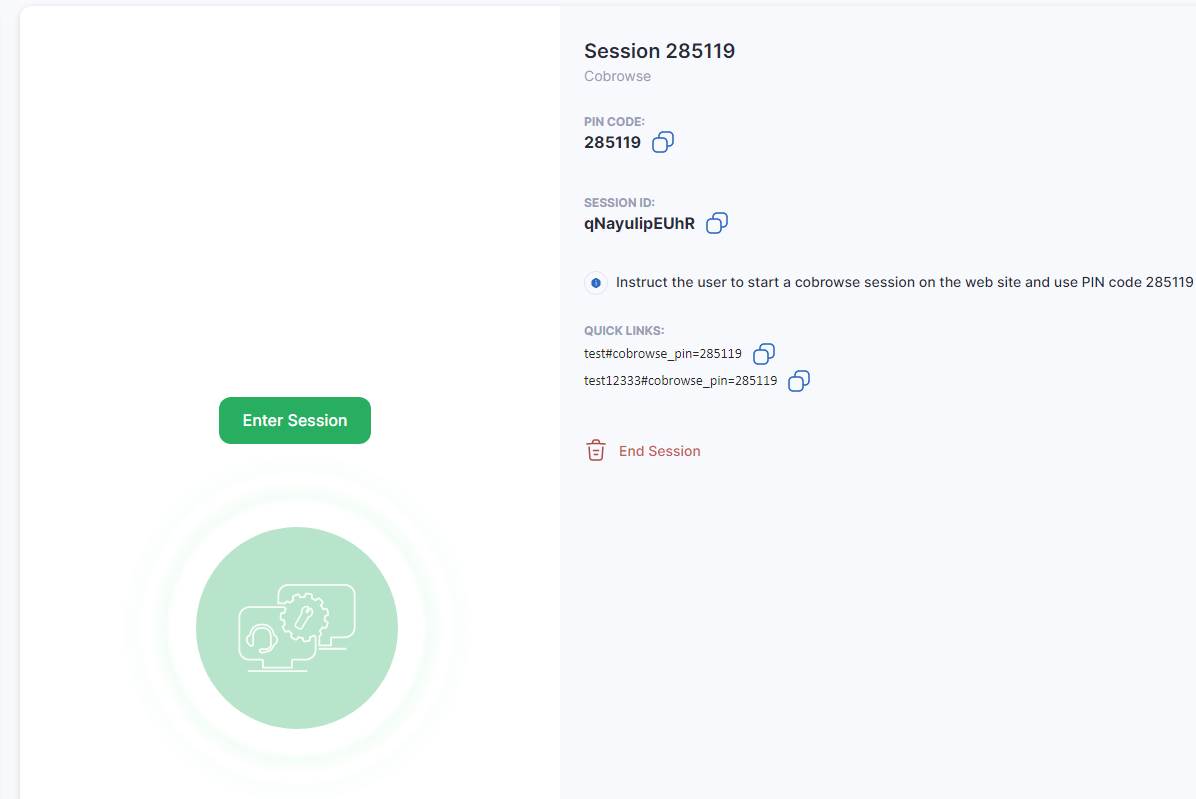
- In the Agent Portal window, you will be prompted, as an agent, to join the session. Click the "Enter Session" button to join the session:
- Congratulations, your Customer and Agent are now Cobrowsing.
- When you are done with your session, be sure to clean it up by clicking the "X" next to the session: