Requires ScreenMeet version 2.9.11+
This article explains how access to Beam devices is managed using roles and groups in ServiceNow, so that only users assigned to the newly created role can access devices within a specific Beam group.
We recommend making a role for each individual Beam group. If you make one general Beam role and assign it to different Beam groups, all users with that role will have access to all Beam group devices.
Create Beam group Role in ServiceNow
Create a new role for your specific Beam group
Assign this new role the ScreenMeet Beam role:
x_prois_sm.remote_supportThis provides your agents access to create Beam sessions
Assign the Beam role you created to individual users or groups or create a new group in ServiceNow
Configure your Beam Group to use the ServiceNow Role
Login to console.screemmeet.com
Click
Beam GroupsClick on the Beam group you want to edit or create a new Beam group
Click
Edit Beam GroupChange Who Can Access these Devices to
Use External ACL
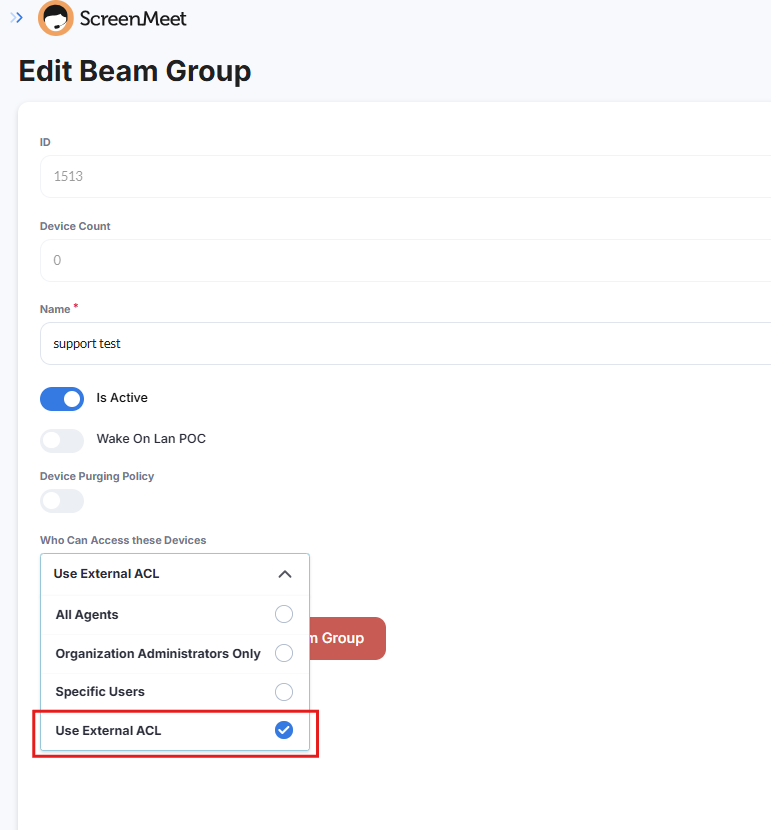
Click
Save Beam GroupClick on
External PermissionsClick
Add External ACL
.png)
Enter the name of the ServiceNow role you created for this beam group (the name of the role entered must match the role in ServiceNow exactly)
Click
Save